Prepare document images before converting a simple DOCX to PDF
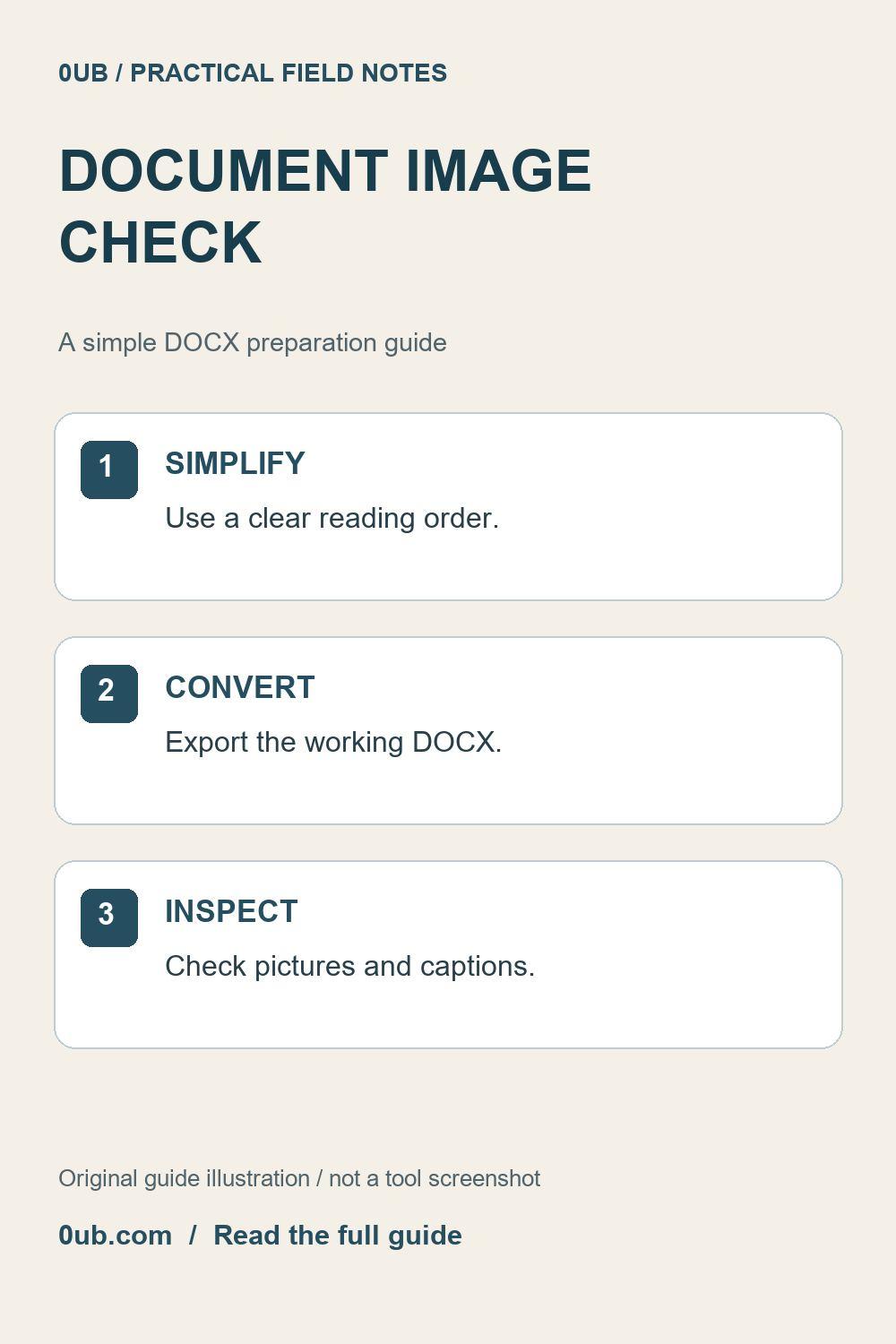
Large screenshots and floating pictures can complicate a document export. Prepare a simple source copy, then review image placement, captions and page breaks in the PDF.
Make an editable working copy
An image-heavy document needs more than a quick check of its opening paragraph. A screenshot can become too small, a caption can move to another page, or a picture can appear in an unexpected place after conversion. Keep the original DOCX and make a separate working copy before simplifying it.
The 0UB Word to PDF tool is intended for simple DOCX documents and uses a browser-rendered conversion. It is not a guarantee of Word's exact layout. For a document that depends on precise positioning, use the original application's PDF export where possible and review that result as well. Older .doc files are not supported by this tool.
Give pictures a simple reading order
In the source editor, place explanatory pictures near the paragraphs they support. Where practical, use an ordinary in-line picture instead of a floating object that depends on text wrapping or a carefully positioned anchor. Put the caption in a nearby paragraph and make the relationship clear in the wording, not only through proximity.
For example, write “The next image shows the export settings” instead of relying on “the picture on the right.” A rendered export may reorganize the page, making a direction-based reference confusing. This is a source-preparation suggestion, not a promise that every in-line picture or caption will remain on the same page.
Check whether the image carries readable information
Open screenshots at the intended document width and check their smallest useful labels. If an image contains a whole desktop but only one dialog matters, prepare an appropriate close-up in your source editor. Preserve enough context to explain the step, and remove personal information deliberately before saving the revised picture.
Avoid stretching a small picture to make it seem higher resolution. Additional display area does not recreate missing detail. Keep a clear original image separately from the copy placed into the DOCX so that you can replace it later without repeatedly editing an already degraded version.
Review the output page by page
Save the working document as DOCX, choose the intended A4 or Letter output in Word to PDF, and convert it. Open the PDF and inspect every image page. Check the right edge, the bottom of each picture, the paragraph order, and whether captions still describe the correct image.
If a page is clipped or awkward, revise the source into a simpler sequence and export again. Do not assume the PDF preserves selectable text, hyperlinks, image metadata or interactive elements. Verify any feature the recipient needs. Finish by checking the last page and keeping the reviewed PDF alongside the editable source with distinct filenames.
Related guides
- Simplify a Word table before making a shareable PDF
- Check the last page before sharing a converted DOCX PDF
Prepared with AI assistance and reviewed against documented tool features; no firsthand testing is implied.