Simplify a Word table before making a shareable PDF
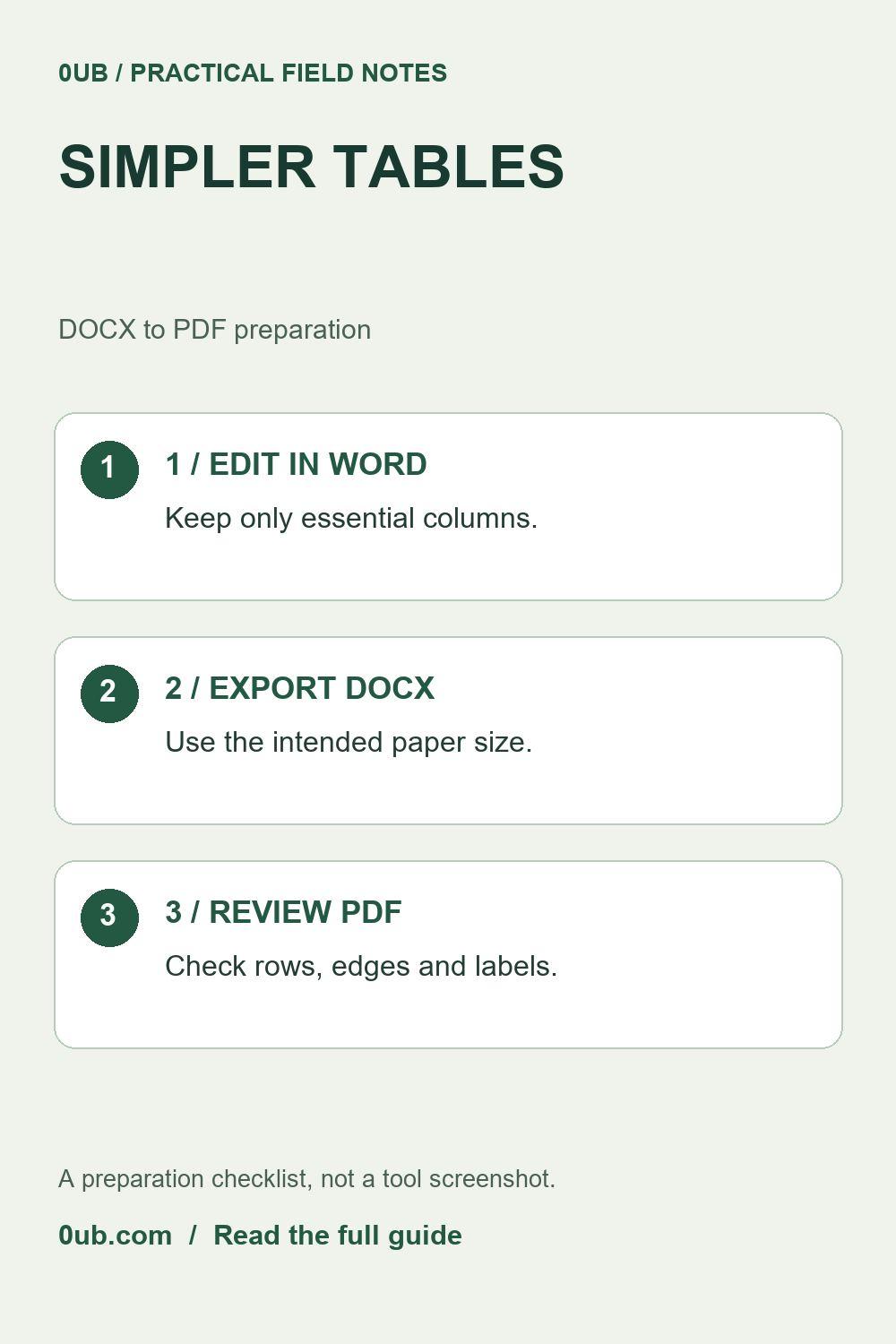
Wide tables and dense cells can make a converted PDF difficult to read. Simplify the source DOCX, export a sample and review every table page.
Decide whether the table needs exact layout
A table that looks tidy in Word may become crowded when its content is reflowed for PDF. Start by deciding what the reader needs: a straightforward summary, or a document whose exact positioning must be retained. A simple conversion is more suitable for the first case.
The 0UB Word to PDF tool handles simple DOCX documents through a browser rendering workflow. It does not promise to reproduce complex Word layouts, headers, footers or fonts exactly. For a form, signed document or carefully positioned report, use the source application's PDF export where possible and inspect that output too. The tool does not accept older .doc files.
Simplify the source document
Make a working copy before editing. Remove columns that repeat the same information or are unnecessary for this reader. Move long explanations out of individual cells into clearly labelled paragraphs below the table. Shorten headings without removing the units or context needed to interpret a value.
For example, a personal task summary may need only Task, Owner and Due date. Background notes can follow the table as ordinary text. This is an illustration of simplifying a document, not a claim that every three-column table will convert correctly. Avoid relying on nested tables, merged cells or blank spacing to hold the layout together.
Export and inspect a representative table
Save the working copy as DOCX. In the Word to PDF tool, choose the paper size intended for sharing, such as A4 or Letter, and convert the document. Changing paper size can change where content wraps, so compare the actual output rather than assuming the Word view is preserved.
Open the PDF and inspect the left and right edges of the widest table. Check long cell contents, numbers, units, row boundaries and the transition onto the next page. The conversion attempts to avoid splitting rows, but a row taller than a page or an unusually wide table still needs manual attention. Review every page that contains a table, not only the first one.
Fix the source, then make the final copy
If the table is clipped or difficult to read, return to the DOCX. Split a very wide table into two clearly labelled tables, or replace a dense table with short sections. Do not solve a readability problem merely by shrinking all the text. Export again and compare the revised pages.
The PDF is rendered output, so selectable text, searchable text and working hyperlinks should not be assumed. Check any feature the recipient depends on and use a suitable alternative export method when needed. Keep the editable DOCX alongside the reviewed PDF, with distinct filenames, so later corrections can be made in the source.
Related guides
- A4 or Letter? Prepare a simple DOCX for PDF sharing
- Check the last page before sharing a converted DOCX PDF
Prepared with AI assistance and reviewed against documented tool features; no firsthand testing is implied.