DOCX to PDF: review comments and tracked changes before sharing
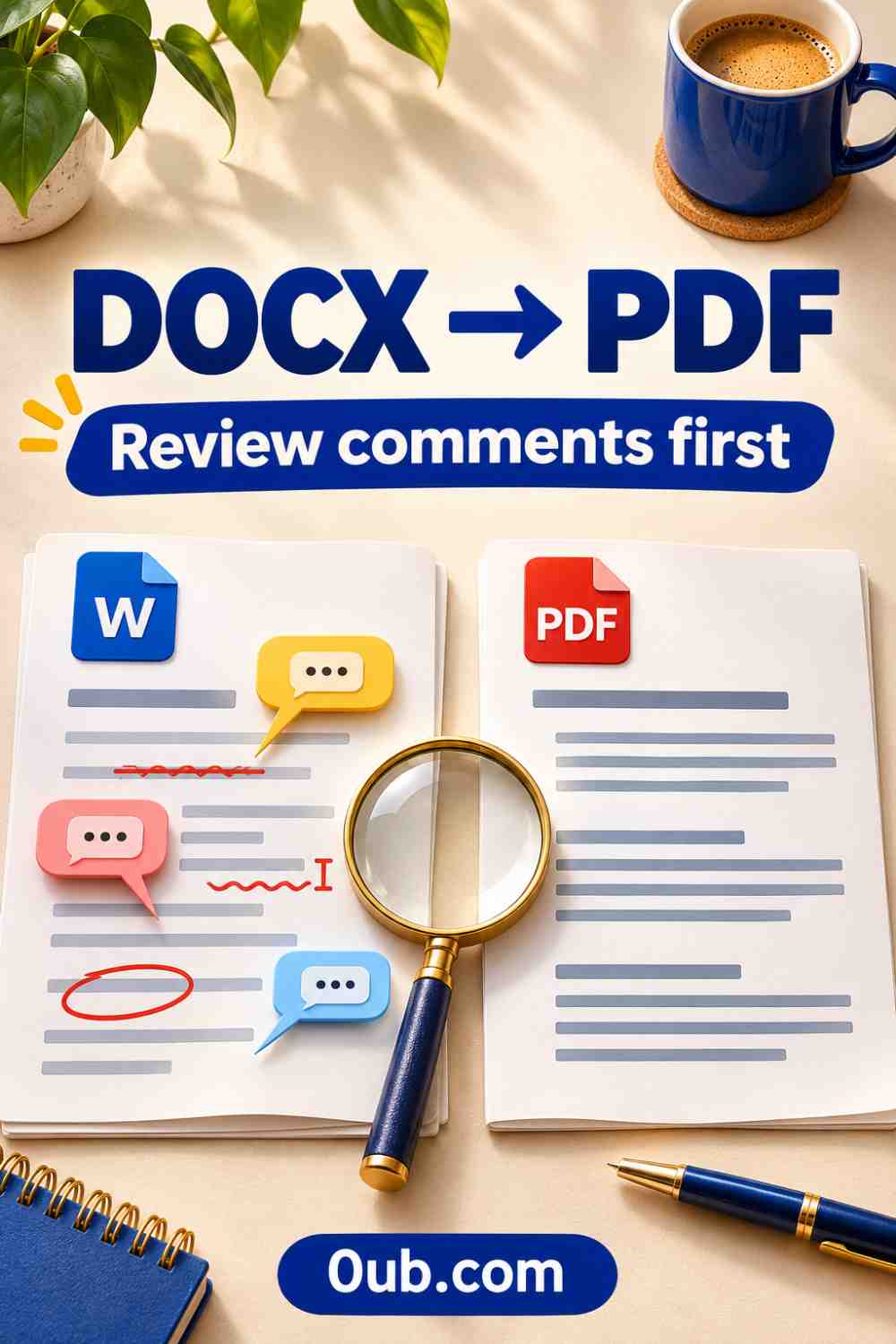
Prepare a clean DOCX before PDF conversion. Review tracked changes, remove unwanted comments, and inspect the final PDF instead of relying on a hidden-markup view.
Should you review comments before converting DOCX to PDF?
Yes. Prepare the intended final wording in the editable DOCX before converting it. Review tracked changes, accept or reject them as appropriate, and delete comments that should not accompany the shared version. Hiding markup on screen is not the same as removing it from the source document.
The 0UB Word to PDF tool is a simple document conversion workflow, not a document sanitization or revision-management service. Do not rely on conversion to decide which wording is approved, remove every hidden property, or produce an exact copy of Word's review view.
Keep an editable review copy and a release copy
For a workshop handout, a reviewer might suggest a new start time and leave a comment asking whether registration is open. Resolve those questions with the document owner before making the public PDF. A clean appearance cannot tell you whether an unresolved suggestion was approved.
Keep the collaborative original and prepare a separate release copy. Use a filename that identifies the intended version, such as workshop-handout-release.docx. This lets you remove review material from the distribution source without destroying the discussion needed for future revisions. Work through the review intentionally rather than accepting every change automatically.
Resolve revisions and comments in the source application
In Word, review the changes and use the Accept or Reject commands to settle the intended wording. Turning tracking off only affects subsequent editing; it does not settle existing changes. Then review comments separately and delete those that are not meant for the recipient. Recheck dates, names and any passages affected by revisions.
For a document that needs a privacy review, use an appropriate source-document inspection workflow as well. Microsoft documents the Document Inspector for finding hidden data and personal information. Keep a backup before removing information, and inspect the intended release file. A visual PDF check alone cannot establish that every hidden property is absent.
Convert the release copy and read the downloaded PDF
Convert the prepared release DOCX, then open the downloaded PDF rather than inspecting only the source document. Read the revised passages and compare them with the approved wording. Check headings, paragraphs and the last page so that a content decision has not been obscured by a layout problem.
The 0UB converter reflows simple DOCX content, so complex layout and review features should not be assumed to survive unchanged. If you need a specific markup view, exact pagination, or a more complete document-export workflow, use the source application's PDF export and inspect its result separately.
A short release checklist
Before sharing, confirm that the wording is approved, unwanted comments are removed from the release source, the final PDF reads correctly, and the filename identifies the right version. Review intended links and visible contact information too. Keep the editable original available for corrections after publication.
This process reduces avoidable review mistakes; it does not certify a PDF as free of hidden data. Reference: Microsoft Support, Accept or reject tracked changes in Word, https://support.microsoft.com/en-us/word/accept-or-reject-tracked-changes-in-word .
Related guides
- DOCX to PDF: what to check before sharing
- Keep headings with their paragraphs when reviewing a DOCX-to-PDF export
- DOCX to PDF link check: verify clickable text before sharing
Prepared with AI assistance and reviewed against documented tool features; no firsthand testing is implied.