DOCX to PDF link check: verify clickable text before sharing
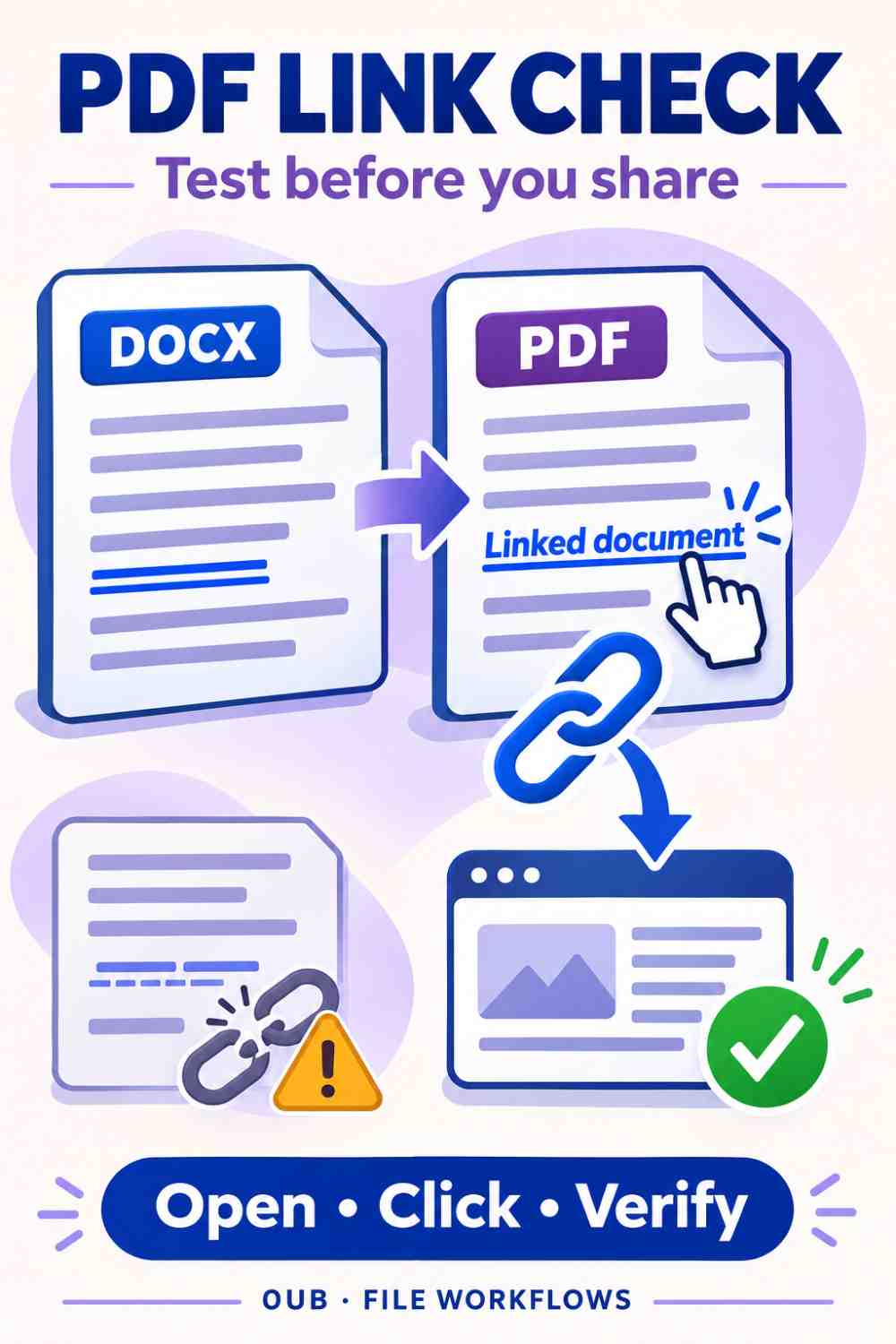
A blue or underlined phrase does not prove a PDF link works. Check the downloaded file, verify each destination and choose another export method when links matter.
Does a link-looking phrase prove a PDF link works?
No. Blue or underlined text can be visible in a PDF without functioning as a clickable link. Open the downloaded PDF in the viewer your recipient is likely to use, activate each intended link and verify its destination. Do not assume that a successful DOCX conversion preserves working links.
The 0UB Word to PDF tool reflows a simple DOCX into a rendered PDF. It is not an exact-layout export, and this guide does not promise preservation of interactive links, selectable text or accessibility structure. If working links are essential, choose an export method that supports them and verify the result.
Make the source document understandable first
Consider a one-page workshop handout containing a registration link, a reference guide and an email address. Use descriptive visible wording for each destination. A phrase such as 'Workshop registration page' is easier to understand than a page full of identical 'Click here' labels.
Where appropriate, include a short, readable public website address alongside the link text so the handout remains useful on paper. Check that the address is current before exporting. Never publish a private invitation, signed download URL or access token as a fallback address; use an intended public destination instead.
Test the actual downloaded PDF
Start with the downloaded file, rather than the source DOCX or an in-page preview. Locate every intended link and try opening it in a suitable PDF reader. Check that the destination is the expected page, not simply that some browser tab appears.
A PDF reader or browser may apply its own link detection to visible addresses. That behavior can vary between applications, so a successful click in one viewer does not prove that an embedded link was preserved or that all recipients will get the same result. If the reader blocks a link, inspect the address and use its ordinary controls; do not bypass a security warning.
What should you do when a link does not work?
Return to the editable source and use Word or LibreOffice's built-in PDF export when preserving document features is important. Review that application's link-related export options, generate a new PDF and repeat the click checks. Another export method is an alternative to evaluate, not a guarantee that every document feature will survive unchanged.
If the handout must remain a simple static PDF, provide its essential public links in the accompanying email or web page as well. Explain what each link opens. This avoids making a reader retype a long address from a rendered page, while keeping the PDF understandable as a standalone document.
Check layout and usability together
Review headings, page breaks and surrounding text after any re-export. A working link is less useful if its explanation ends up on another page or the visible address is clipped. Check email links separately from website links because they open a different type of application.
Before sharing, confirm the final filename, open the final PDF once more and test the links that matter to the task. Keep the DOCX source for corrections. For accessible documents or documents with important interactive features, use a suitable authoring and validation workflow rather than treating a visual conversion as sufficient.
Related guides
- DOCX to PDF: what to check before sharing
- Need searchable PDF text? Check the conversion method first
- Keep headings with their paragraphs when reviewing a DOCX-to-PDF export
Prepared with AI assistance and reviewed against documented tool features; no firsthand testing is implied.