Need searchable PDF text? Check the conversion method first
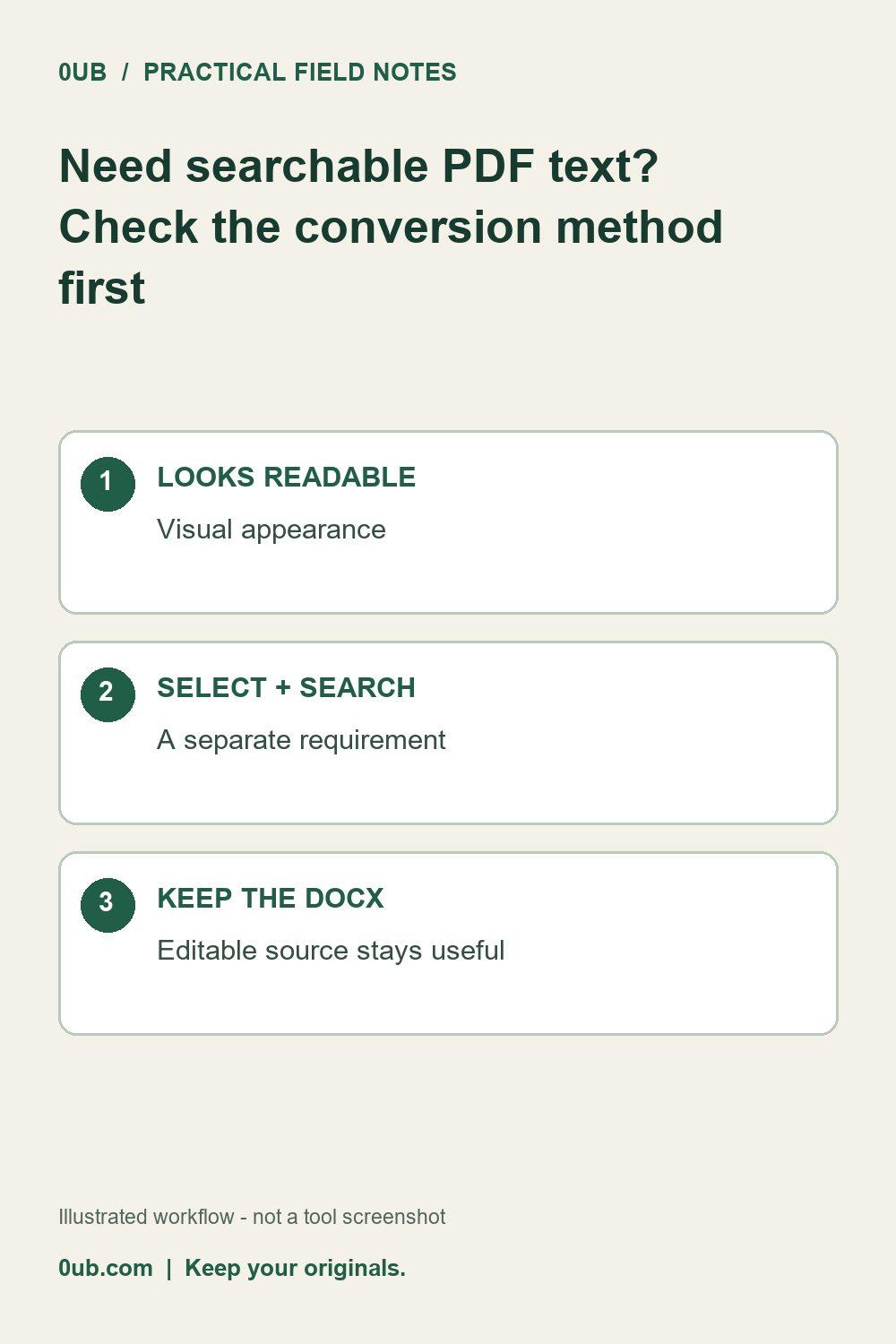
Learn why a PDF that looks readable may not contain selectable text, and when to use a different export workflow.
Separate appearance from text access
A PDF can display crisp-looking words while its pages are stored as images. That difference matters when a recipient needs to select a sentence, search for a reference number or use assistive technology. A visual review alone cannot establish that a PDF meets those needs.
Know what this tool produces
The current 0UB simple Word-to-PDF tool renders document content into PDF pages. Selectable or searchable text is not guaranteed, and the tool is not an OCR service or an accessibility remediation tool. It is best treated as a convenient visual sharing option for simple DOCX documents.
If searchable text is essential, use an export method that preserves document text, such as the PDF export in the editor you used to author the file. Then check that output directly. Changing a filename extension or increasing image quality does not create a text layer.
Make a practical recipient check
Open the final file in your intended PDF reader. Try selecting a sentence and searching for an exact phrase you know is present. These checks reveal useful problems, but they are not a complete accessibility audit; screen-reader order, headings and other structure may need separate review.
Keep the editable DOCX with the final PDF. If the recipient needs corrections, accessible structure or reliable text extraction, share an appropriate source or regenerate the PDF using a suitable workflow. Also inspect page breaks and the last page. A file can pass the text check while still clipping a table or leaving out content.
Related guides
- Check the last page before sharing a converted DOCX PDF
- A4 or Letter? Prepare a simple DOCX for PDF sharing
Prepared with AI assistance and reviewed against documented tool features; no firsthand testing is implied.