How to Remove GPS Location When Sharing HEIC Photos as JPG
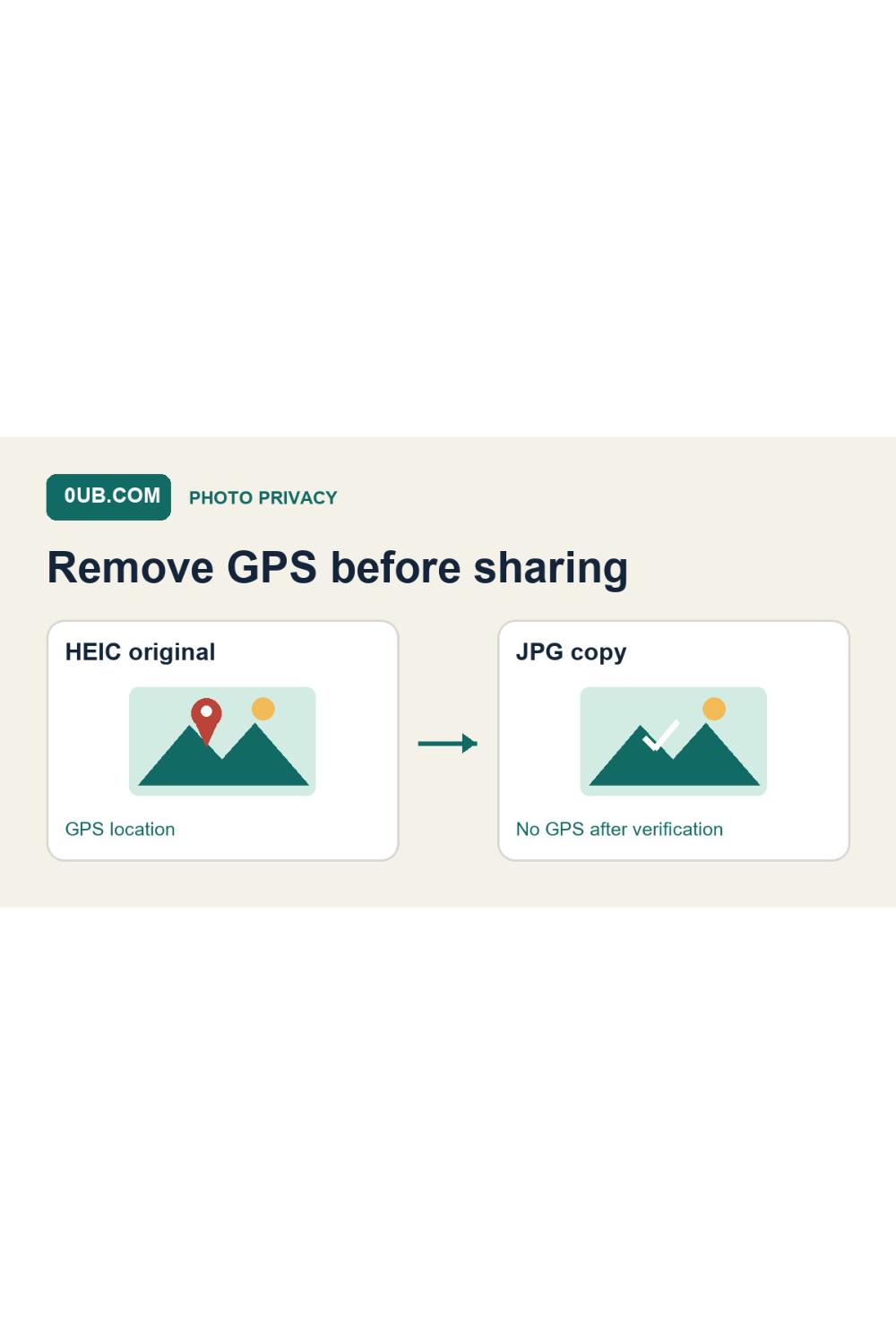
Make a JPG sharing copy of an iPhone photo and check that the exported file no longer contains GPS coordinates.
Quick answer
A JPG made from an iPhone HEIC photo can still contain GPS coordinates if the conversion copies the original metadata. Make a sharing copy, remove location from that copy, and inspect the exported file before you upload it. Keep the HEIC original in your private library.
Check whether the photo contains location data
Open the photo in the iPhone Photos app and swipe up to see its information. A map or a named location is a reason to check the sharing settings. If the HEIC file is already on your computer, inspect the original in an image metadata viewer that reports GPS fields. A missing map in one app can mean the app does not display location, so verify the final copy with a viewer that does.
Make a JPG sharing copy
If you are sharing directly from Photos and see a Location switch under Share Options, turn it off before exporting or sharing. If you are converting an existing HEIC file with a tool that offers metadata settings, select the option that removes location data. Some tools strip all metadata, including camera information and capture dates. If your workflow needs those fields, choose a tool that can remove GPS selectively.
Verify the file you will actually send
Open the exported JPG in the metadata viewer. Check for GPS latitude and longitude and compare with the original. For example, if the original listing photo shows coordinates and the JPG does not, the copy passes that check. Inspect the converted image visually as well, especially for house numbers, vehicle plates, or recognizable signs. Removing GPS does not alter those details in the image.
Apply the same check to a batch
Start with one photo that you know contains GPS. Verify its output, then export the rest with the same settings. Check several final files from different cameras or albums, and keep those copies in a clearly named sharing folder. Upload only from that folder.
Related guides
- Does HEIC to JPG Keep the Original Photo Date?
- How to Convert HEIC to JPG and Keep the Same Pixel Dimensions
Prepared with AI assistance and reviewed against documented tool features; no firsthand testing is implied.