How to Convert HEIC to JPG and Keep the Same Pixel Dimensions
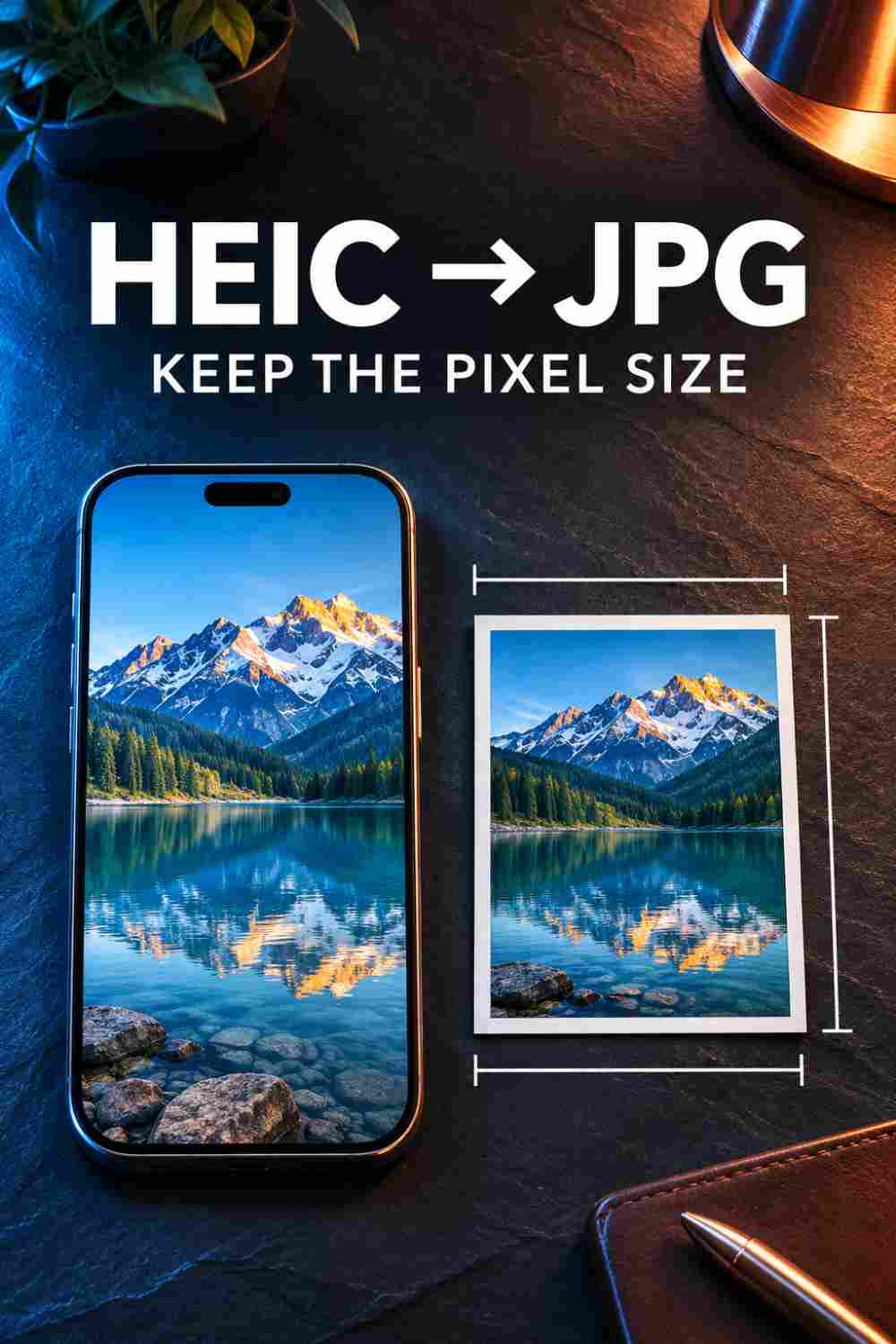
Keep the original width and height when converting HEIC to JPG. Compare pixel dimensions after export and find the step that resized the photo.
Can you convert HEIC to JPG without changing the dimensions?
Yes. Choose an export at the original size, then compare the JPG's width and height with the source photo. A 4032 × 3024 HEIC can become a 4032 × 3024 JPG. The two files may occupy different amounts of disk space because the formats encode the pixels differently.
Record the dimensions before conversion
Open the actual HEIC file in a photo app or file inspector and note its width and height in pixels. Use the file you will convert as your reference. A preview from a messaging app may already be smaller than the file saved by the camera.
If you are exporting from Photos on a Mac, choose JPEG and use the full-size option when preserving dimensions matters. Keep the HEIC as a source file so you can return to it if an upload later requires a smaller copy.
Find where a photo got smaller
Compare the downloaded JPG's dimensions before emailing it or uploading it. If it measures 2016 × 1512 instead of 4032 × 3024, both sides were halved and the new image contains one quarter as many pixels. Look for a custom size, maximum width or height, or a sharing option that reduces image size.
If the exported JPG has the original dimensions, check the copy downloaded from the destination too. A marketplace or messaging app may create a smaller version for display. Label delivery copies with a size suffix when you need several versions.
Check the parts you need to read
Open the original and JPG at 100% and inspect a small label, a face, or a fine edge. JPEG quality settings can affect those details even when width and height match. For a batch, test a portrait and a landscape photo before converting the entire folder.
Related guides
- Why Is My JPG Larger After Converting HEIC?
- Does HEIC to JPG Keep the Original Photo Date?
- HEIC to JPG: a simple photo sharing checklist
Prepared with AI assistance and reviewed against documented tool features; no firsthand testing is implied.