Shorten product headlines before exporting social graphics
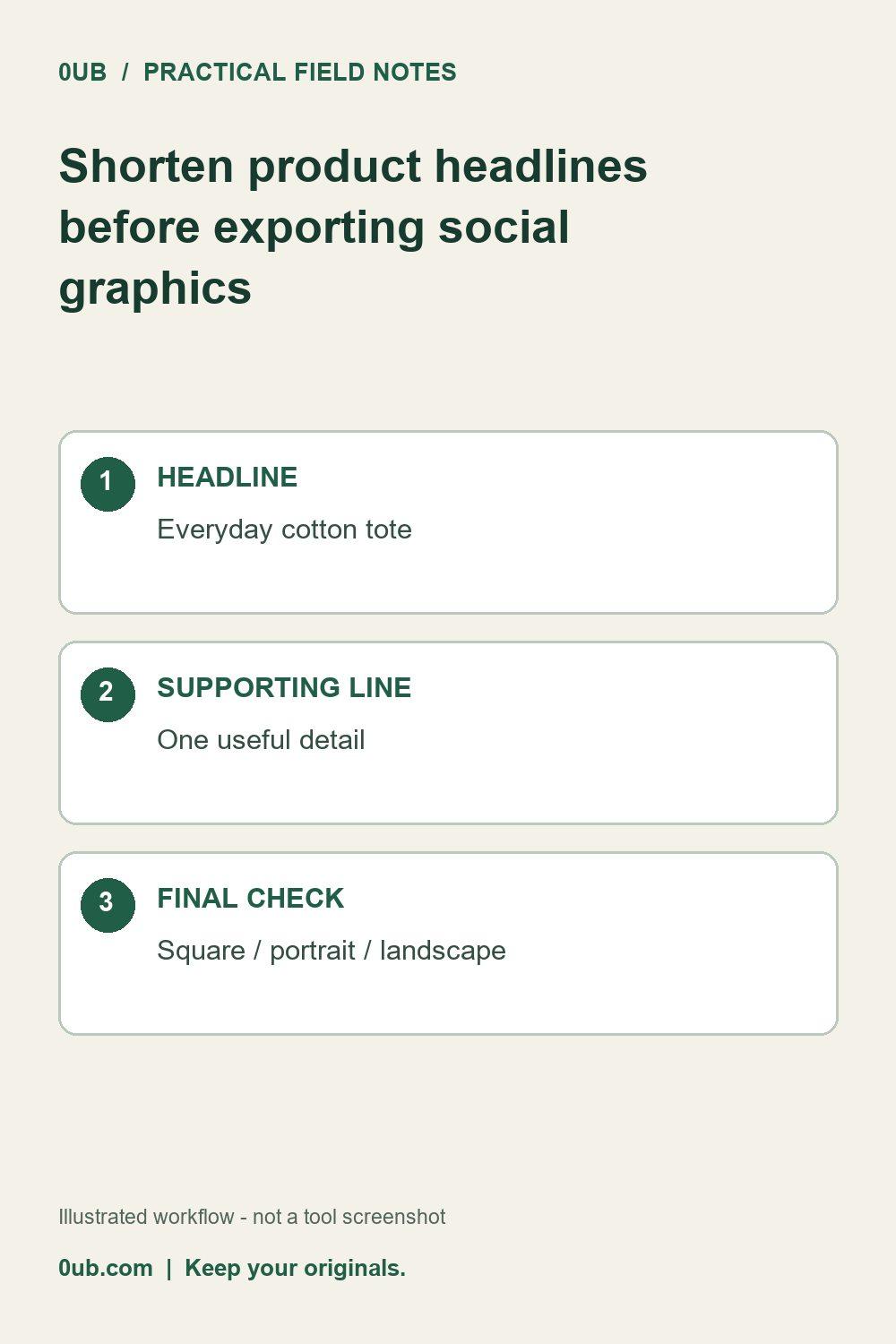
Make product graphics easier to read by separating the product name, supporting detail and price before checking each layout.
Give the headline one job
A product graphic is easier to scan when its headline identifies one thing. Start with a short product name or a clear benefit you can support. Move size, material or a secondary detail into the supporting line instead of squeezing a complete catalog description into the headline. Avoid claims you cannot verify.
Expect layouts to make different compromises
The 0UB product graphics studio fits text into each layout by wrapping it and adjusting its size. Text that still exceeds the available space can end with an ellipsis. A headline that looks comfortable in a portrait design may therefore look smaller or shorter in another format.
Keep prices accurate and check their currency wording. If the amount varies by option, do not present a single price as universal. The studio places the text you provide into a graphic; it does not verify your offer or synchronize it with a shop inventory.
Check the exported graphic, not only the editor
Preview the square, portrait and landscape layouts you intend to use. Read each one at roughly the size someone will see on a phone. Look for small type, awkward line breaks and a supporting line that competes with the product photo. Shorten the source wording before accepting tiny text.
Open the downloaded PNG as a final check. Keep the exact approved wording with your source image so the next revision starts from the same material. Individual PNG export is available in the studio; three-size ZIP and CSV batch workflows require Pro. Review batch rows with unusually long titles before exporting the entire set.
Related guides
- Organize product image exports before making social graphics
- Make product graphics in three sizes from a CSV
Prepared with AI assistance and reviewed against documented tool features; no firsthand testing is implied.