Crop or white padding? Keep the whole product in view
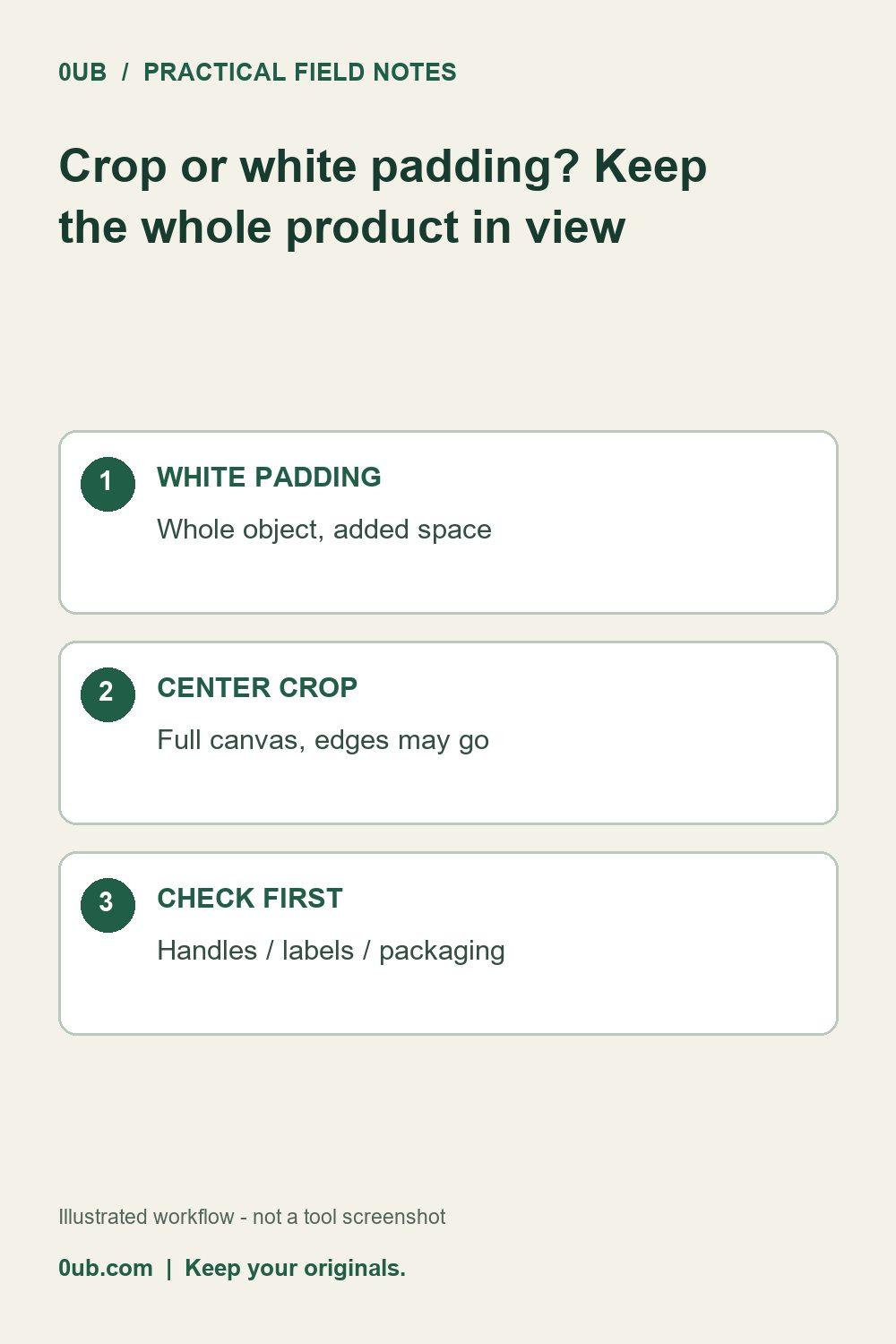
Choose an exact-size image layout without accidentally cutting off handles, packaging or other useful product details.
Start with the detail that must survive
A square listing image can hide more than empty background. A bag handle, a bottle cap or the edge of a box may sit near the boundary of the original photo. Before choosing a resize mode, identify the parts a buyer needs to see. Keep the original file so you can make a different export later.
Choose the trade-off deliberately
In the 0UB batch image studio, white padding places the complete image inside an exact-size canvas and fills the spare area with white. This is useful when keeping the entire object matters more than filling every corner. Existing background inside the original photo remains; padding does not remove it.
Center crop fills the requested canvas while preserving the image proportions. Some content can extend beyond the canvas and disappear. The crop is centered, so do not assume it will follow an off-center product or preserve a label near one side.
Review a demanding sample
Export one tall photograph and one wide photograph before processing a larger group. Check the top, bottom and both sides at the actual display size. If essential details are missing, use padding or prepare a better-framed source. If padding makes the product too small, review the source framing instead of repeatedly cropping an already cropped export.
Use the existing fit-inside guide when you only need a maximum width and height. Fit inside is a different choice from making every output exactly the same size. Advanced batch and ZIP features require Pro; this framing checklist applies to individual images too.
Related guides
- Why a fit-inside image can be smaller than your target box
- A repeatable size and naming workflow for product images
Prepared with AI assistance and reviewed against documented tool features; no firsthand testing is implied.