Keep screenshot text readable when preparing images to share
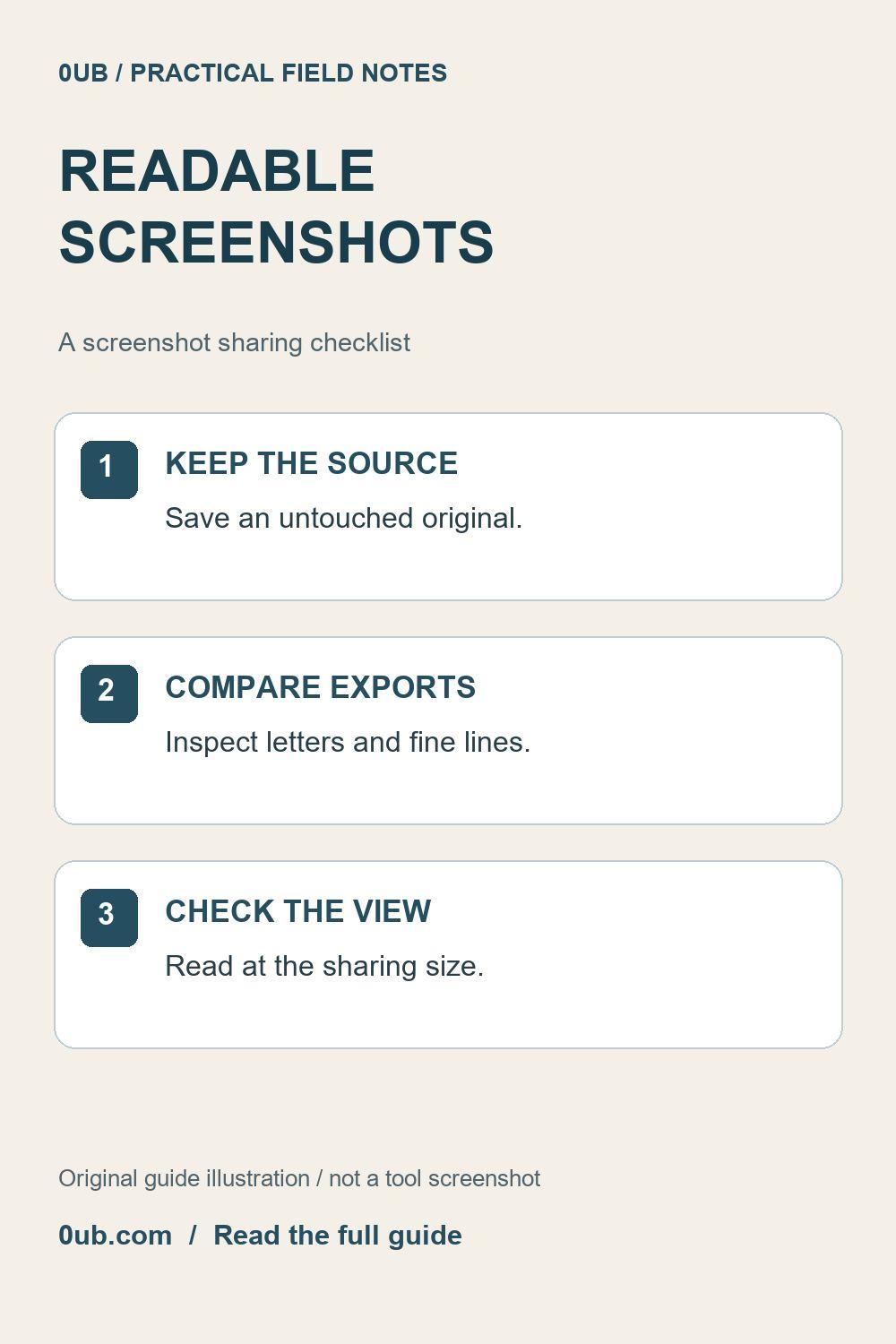
Screenshots need a different review from photographs. Preserve the original, compare PNG with a sample export and check small labels at the final viewing size.
Start with the screenshot you actually need
A screenshot may contain a useful instruction next to tiny menu labels, thin borders and personal account information. Before thinking about file size, decide which part helps the reader. Make a working copy and use your device's editor to remove irrelevant areas or sensitive details. Check the saved copy before opening it in another tool.
Do not rely on resizing to hide a name, email address or private message. Smaller text can still be readable when someone enlarges the image. Redaction is a separate editing task; the 0UB Batch image studio does not provide a dedicated redaction workflow.
Compare a PNG with a photographic format
For screenshots made mainly of text and flat interface colors, PNG is a useful starting point because it avoids the lossy compression used by JPG. A JPG copy may be smaller, but fine lettering can acquire halos or uneven edges. The useful choice depends on the actual image and where it will be displayed.
In Batch image studio, export one sample in a supported format and inspect the result. Choosing PNG does not restore detail that was already lost in an earlier JPG. Avoid a repeated JPG-to-JPG editing cycle; return to the original screenshot for each comparison instead. Check whether the destination accepts the selected format before preparing the rest.
Make text readable at the final size
View the export at approximately the size your recipient will see. A crisp full-resolution screenshot can still become unreadable when squeezed into a narrow email or article column. If the instructions require several small labels, consider separate close-up screenshots made in your source editor rather than one large, dense overview.
Keep the context needed to understand each close-up, such as the relevant heading or menu. If you use a fit-inside export, check the actual output dimensions; fitting into a box does not guarantee an exact canvas size. Increasing dimensions cannot recover letters that were absent from the source.
Check the delivered copy
Inspect small letters, punctuation and any numbers that matter to the instruction. Then check the exported file size separately from its pixel dimensions. If it is too large, reduce unnecessary content or adjust permitted dimensions before accepting a result that makes essential text harder to read.
Finally, inspect the image after placing it in the email, document or publishing preview. A destination may apply its own resizing or compression. Keep the original and the sharing copy in different folders so that a later correction starts from a reliable source, not from a compressed image downloaded from an earlier post.
Related guides
- Pixels are not megabytes: prepare images for an upload limit
- Compare JPG quality with one product photo first
Prepared with AI assistance and reviewed against documented tool features; no firsthand testing is implied.