How to Turn a Square Product Photo into a 4:5 Image
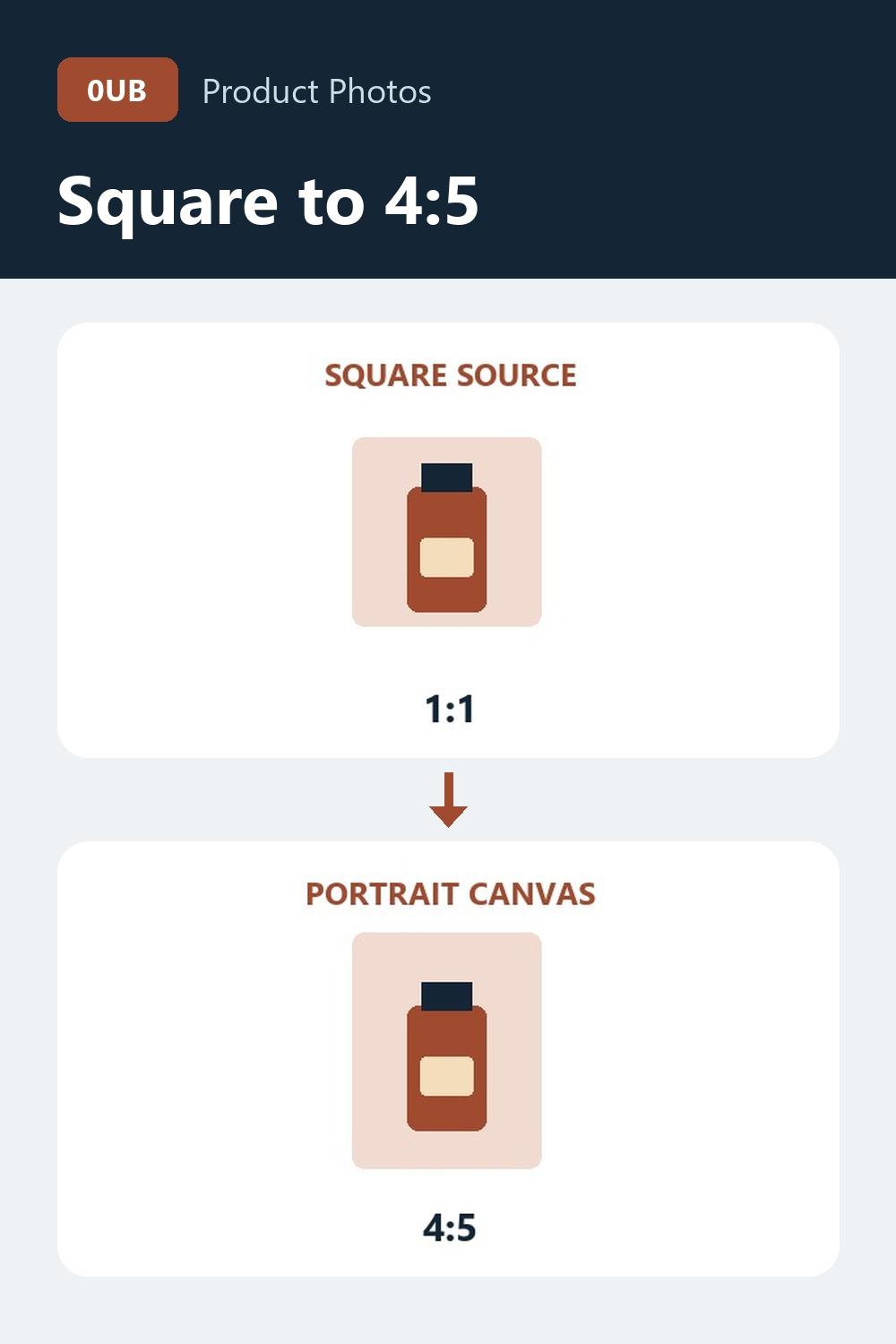
Place a square product photo on a 1080 × 1350 portrait canvas without stretching the item or cutting off the label.
What is a 4:5 product image?
A 4:5 portrait image is taller than it is wide. A 1080 × 1350 canvas is one example. To turn a square photo into this shape while keeping the complete product in view, place the square on a 4:5 canvas and extend the background above and below it. Preserve the source proportions when resizing.
Example: fit a 1080 × 1080 photo to 1080 × 1350
Create a 1080 × 1350 canvas. Center the 1080 × 1080 image at full width. The extra 270 pixels become 135 pixels above and 135 pixels below the image. Match the surrounding canvas to the source background. For a white or solid backdrop this can work with a color sample. If the source has noticeable shadows or a textured backdrop, place it on a deliberate background and check that the transition looks tidy.
When is a 4:5 crop better?
A 4:5 crop can give a closer view when the square photo already has room to spare on the left and right. Cropping 1080 × 1080 to 864 × 1080 removes 108 pixels from each side when centered. Check the product edges, text and any packaging before exporting. If important content touches the edge, fit the original on the taller canvas or begin with a wider source shot.
Check the export before posting
Open the result and verify that it is 1080 × 1350. Compare a round or rectangular feature with the source to catch stretching. Finally, check the destination preview because the same portrait image may appear as a square in a grid. Keep the product and its important label details near the center if that happens.
Related guides
- Crop or white padding? Keep the whole product in view
- Leave safe margins around text in product graphics
Prepared with AI assistance and reviewed against documented tool features; no firsthand testing is implied.