How to Put a Transparent Logo on a JPG Without a White Box
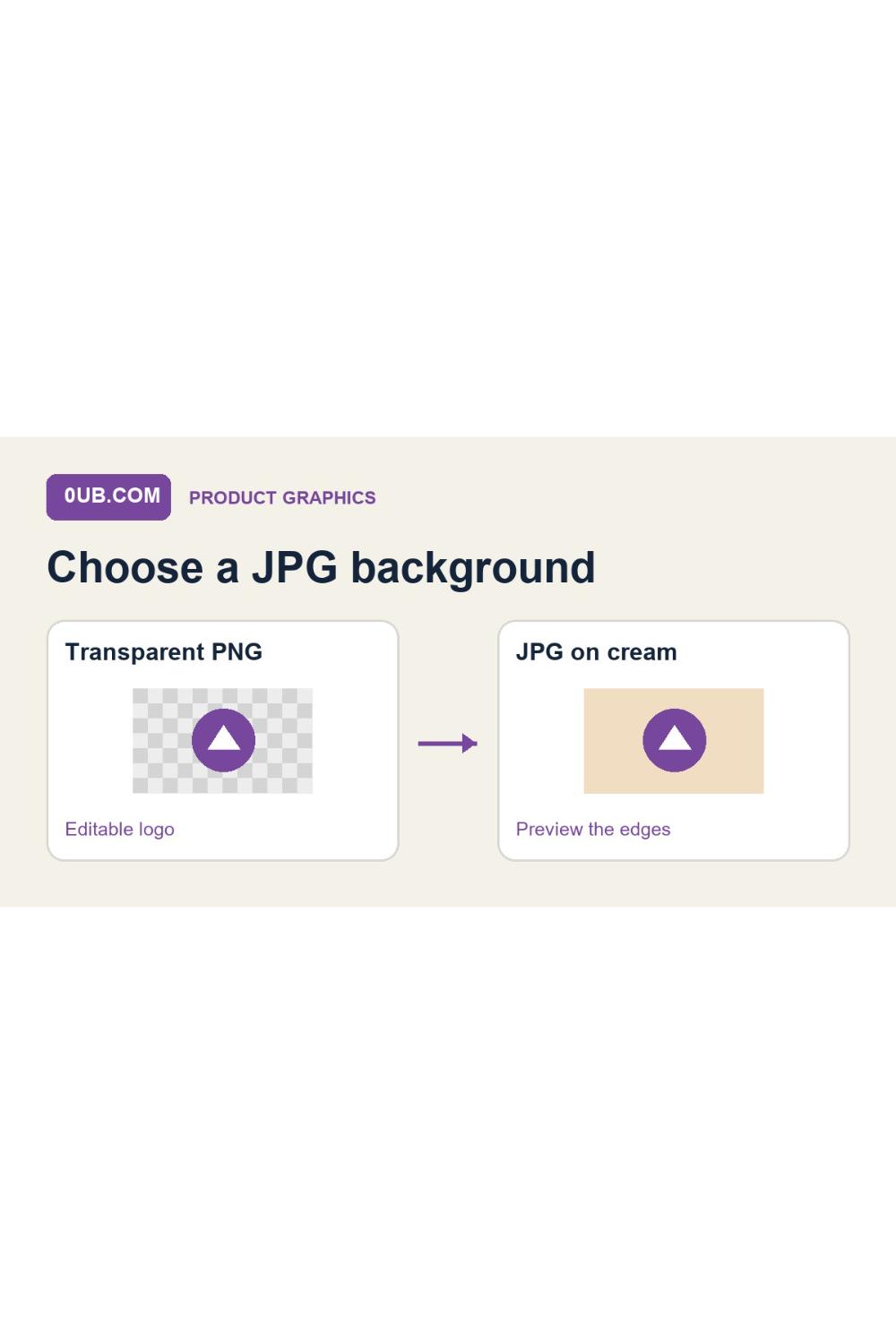
Keep a transparent PNG logo while editing, place it on the final background, and export a clean JPG with readable edges.
Quick answer
A JPG does not support transparency. To put a transparent logo on a JPG without a white box, place the PNG logo over the intended background in your editor, then export the finished composition as JPG. Keep the transparent PNG as your reusable source.
Check whether the logo is actually transparent
Place the logo over a dark test layer and then a light one. If a solid white rectangle appears on the dark layer, the source file may already contain white pixels around the logo. Use the original transparent logo from your brand assets when available. If you must remove a baked-in background, check for white areas inside the artwork before removing surrounding pixels.
Add the final background first
Set the canvas to the final dimensions, place the product photo or solid background, and put the logo on top. For example, a white logo may read well on a navy banner and disappear on a pale product image. Use a dark version of the logo or place it where the background has enough contrast. Review it at the size viewers will actually see.
Fix a light halo around the edges
Zoom in before exporting. A pale outline can come from edge pixels left by an earlier white background. If the original transparent asset has clean edges, replace the affected copy. Where the editor provides a matting or edge cleanup control, apply a small adjustment and check fine strokes and lettering before exporting.
Export and reopen the JPG
Save the layered design or editable source separately, then export a JPG copy. Reopen it against the intended layout and check the logo at thumbnail size as well as at full size. If the logo itself needs to be reusable on several backgrounds, export a separate transparent PNG alongside the finished JPG.
Related guides
- Product graphics: check logo readability at the final display size
- Crop or white padding? Keep the whole product in view
Prepared with AI assistance and reviewed against documented tool features; no firsthand testing is implied.