How to Enlarge a Small JPG and Check Whether It Still Looks Sharp
Understand what JPG upscaling changes, inspect the details a larger file cannot recover, and test an export at its real display size.
What happens when you enlarge a JPG?
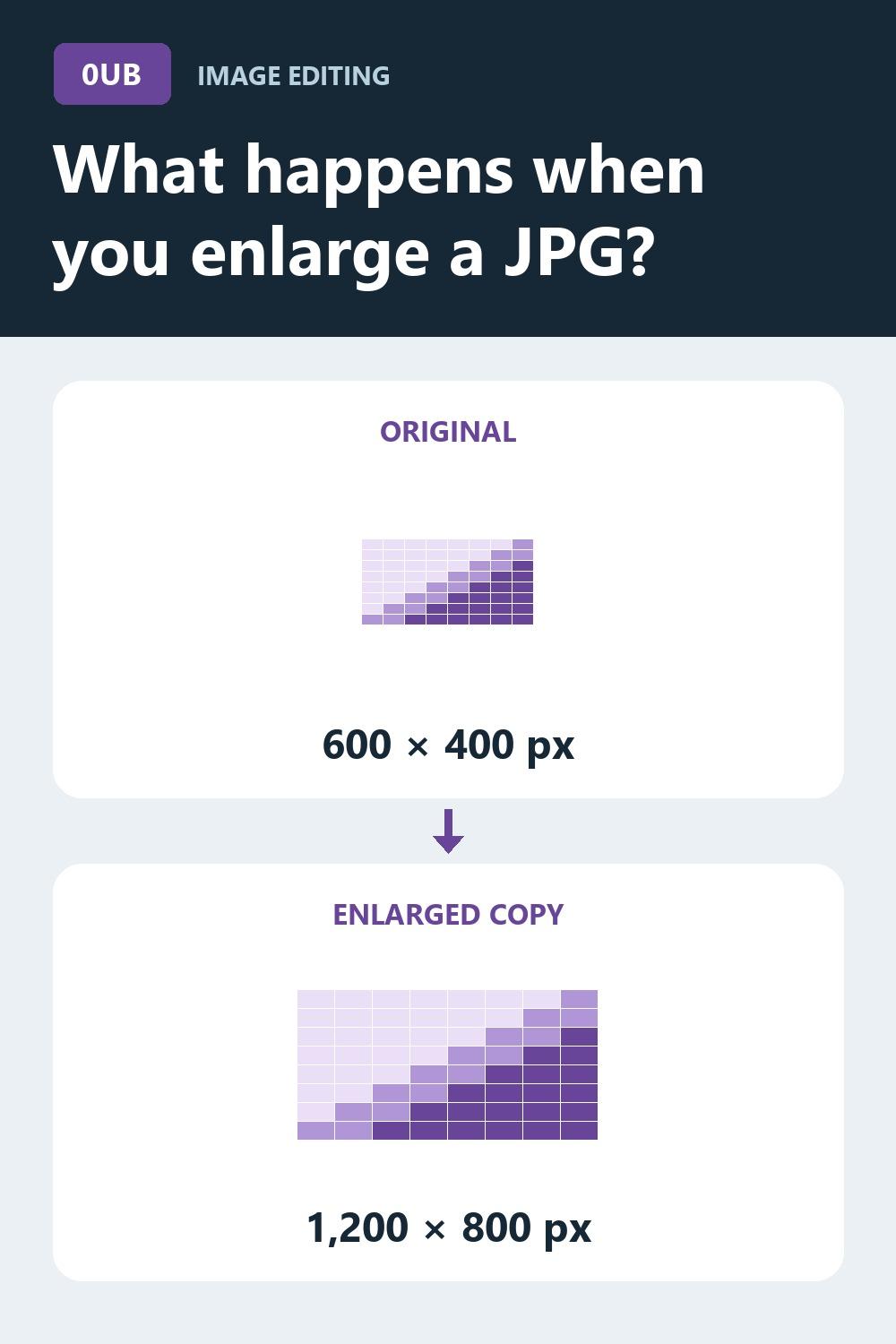
Upscaling adds pixels based on the information in the original image. Enlarging a 600 × 400 JPG to 1,200 × 800 doubles each side and creates four times as many pixels. It can smooth an edge, but it cannot reliably recover a finish, serial number, or small letter that was never visible in the source. File dimensions and detail are separate checks.
Choose the right starting file
Look for the camera original or the designer’s export before enlarging a thumbnail. A product photo downloaded from a messaging app or copied from a listing may already be compressed. If the small JPG is all you have, duplicate it and use an editor that supports enlargement with the aspect ratio locked. The 0UB Batch image studio’s Fit inside mode keeps small sources at their original size. Check the actual output dimensions before sending the example to its destination. Use the same source for each comparison so repeated JPG saves do not influence the result.
Compare at the size people will actually see
Check the enlarged file at 100 percent in an editor for halos, blocky patches, or softened text. Then look at it in the intended layout, such as a 400-pixel-wide listing card or a full-screen product viewer. A photo can look acceptable on a card while its label becomes unreadable when a shopper zooms in. Compare the label, product boundary, and one textured area before processing a whole folder.
What if the missing detail matters?
Use the original or retake the photo if shoppers need to read safety text, a model number, or a scale marking. A separate close-up can be more helpful than a larger version of the same image. If an AI upscaler changes or invents characters, keep those areas out of the final listing until you have an accurate source.
Related guides
- Compare JPG quality with one product photo first
- Why a JPG Looks Sideways After Upload and How to Fix It
Prepared with AI assistance and reviewed against documented tool features; no firsthand testing is implied.