WebP vs JPG for Product Photos: Which Should You Export?
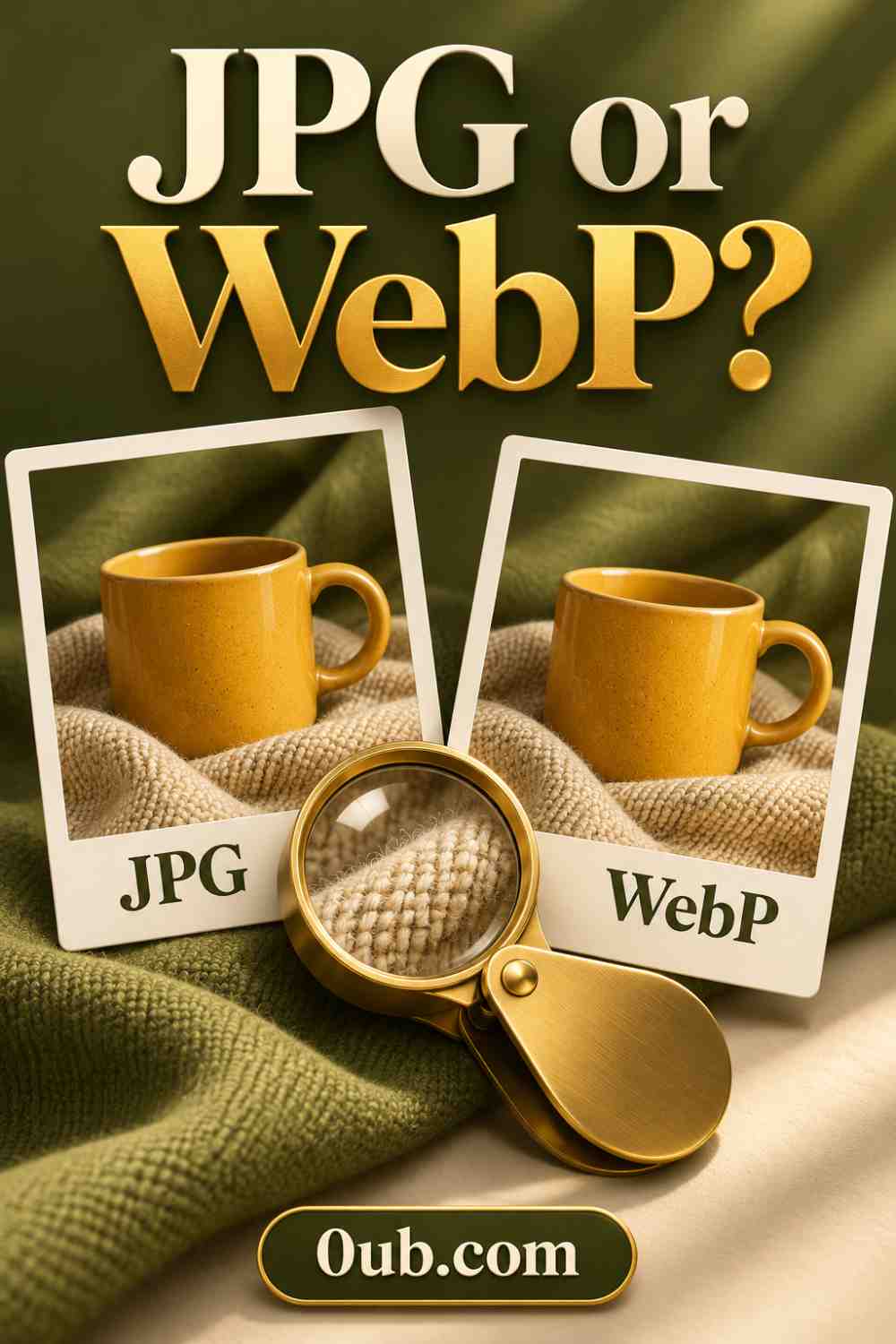
Choose WebP or JPG for a product image by checking format support, comparing equally sized exports, and inspecting texture and lettering at display size.
Should product photos use WebP or JPG?
Try WebP when your website accepts it and a sample export is smaller while keeping the details buyers need. Choose JPG when the marketplace, catalog importer or recipient requires JPEG. If both formats are accepted, compare two exports with the same dimensions and crop before processing the entire folder.
The file format is only one part of the decision. A cropped photo with fewer pixels can take up less space regardless of format, and the quality settings in two encoders do not represent a common scale. Use the actual downloads to choose.
Compare the same photograph at the same dimensions
Pick a representative photo with a product label, a clean edge and a textured area. For example, use a ceramic mug on a woven mat. Start both exports from the same master image in the 0UB batch image studio. Set the same width, height and resize mode, then save one JPG and one WebP.
Open both files at the size they will appear in the product gallery. Check the rim, handle and lettering. Compare texture where it helps buyers understand the material. If one version looks softer, adjust the quality for that format and compare again. Record the byte size of the versions you would actually publish.
Check your publishing and delivery requirements
For your own site, upload the selected sample to a draft product page and open the preview. Confirm that the image displays at the expected size and that the thumbnail still shows the product clearly. Some publishing systems create their own thumbnails or change the file, so check the destination preview as well as the download.
If a retailer or catalog uploader requests JPG, make a dedicated JPG delivery copy from the master. For photographs used in more than one channel, store separate working exports and label the folders by destination. This keeps a later revision from starting with an already compressed or cropped copy.
What if the product image has a transparent background?
JPEG does not support transparency. The 0UB JPG workflow fills transparent areas with white. If a design needs a transparent product cutout, keep a suitable source such as a transparent PNG and check the destination's requirements before choosing an export format. A white background can be useful for a photograph, while a transparent asset serves a different layout need.
Related guides
- Compare JPG quality with one product photo first
- Batch image converter: export JPG copies from a master file
- PNG or JPG for product labels? Compare small text at export size
Prepared with AI assistance and reviewed against documented tool features; no firsthand testing is implied.