Why Word to PDF Adds a Blank Page and How to Fix It
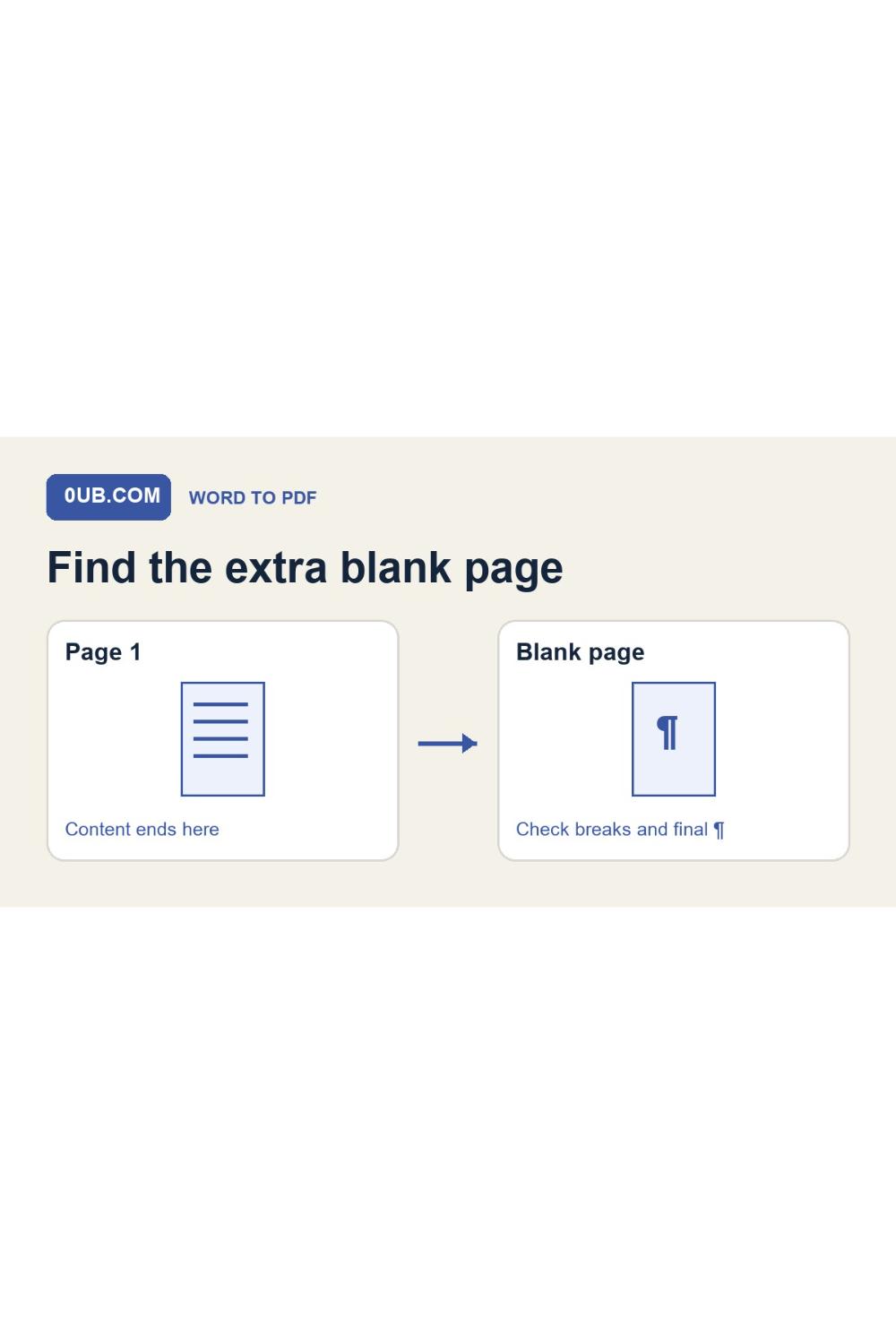
Find the cause of an extra blank page in a Word export by checking page breaks, section starts, and the final paragraph after a table.
Quick answer
An extra blank page in a PDF often comes from a break or an empty paragraph in the Word document. Open the source in Print Layout, show formatting marks, and inspect the blank page and the last line on the preceding page. Export a fresh PDF after each targeted change.
Show formatting marks and find the break
In Word, use the paragraph mark button on the Home ribbon to reveal hidden formatting. Look for a manual page break, repeated empty paragraphs, or a section break near the blank page. Remove a manual page break only if it serves no layout purpose. Save a separate copy before editing an important report or template.
Check how the section is set to start
An Odd Page or Even Page section break may deliberately leave a page blank to start the next section on the requested side. This is useful in double-sided printing. If the PDF is for on-screen reading and that side does not matter, adjust the section start to Next Page if appropriate. Check headers, footers, and page numbering before and after the change.
Fix a blank last page after a table
Word keeps a paragraph after a final table. If the table fills the usable space, the final paragraph can move to another page. Select the final paragraph mark and try a small font size, with minimal paragraph spacing. If it still spills, look for a small amount of excess row height or spacing in the table. Check that the table remains legible.
Compare the exported PDF with Print Preview
If Word's print preview already shows the blank page, focus on the source layout. If the preview looks right but the PDF differs, compare the page count from Word's built-in export with the conversion method you used. Inspect the pages around the change and confirm that no table rows, page numbers, or section headings disappeared.
Related guides
- How to Repeat Table Headers on Every Page When Exporting Word to PDF
- How to Keep One Landscape Page When Exporting Word to PDF
Prepared with AI assistance and reviewed against documented tool features; no firsthand testing is implied.