How to Repeat Table Headers on Every Page When Exporting Word to PDF
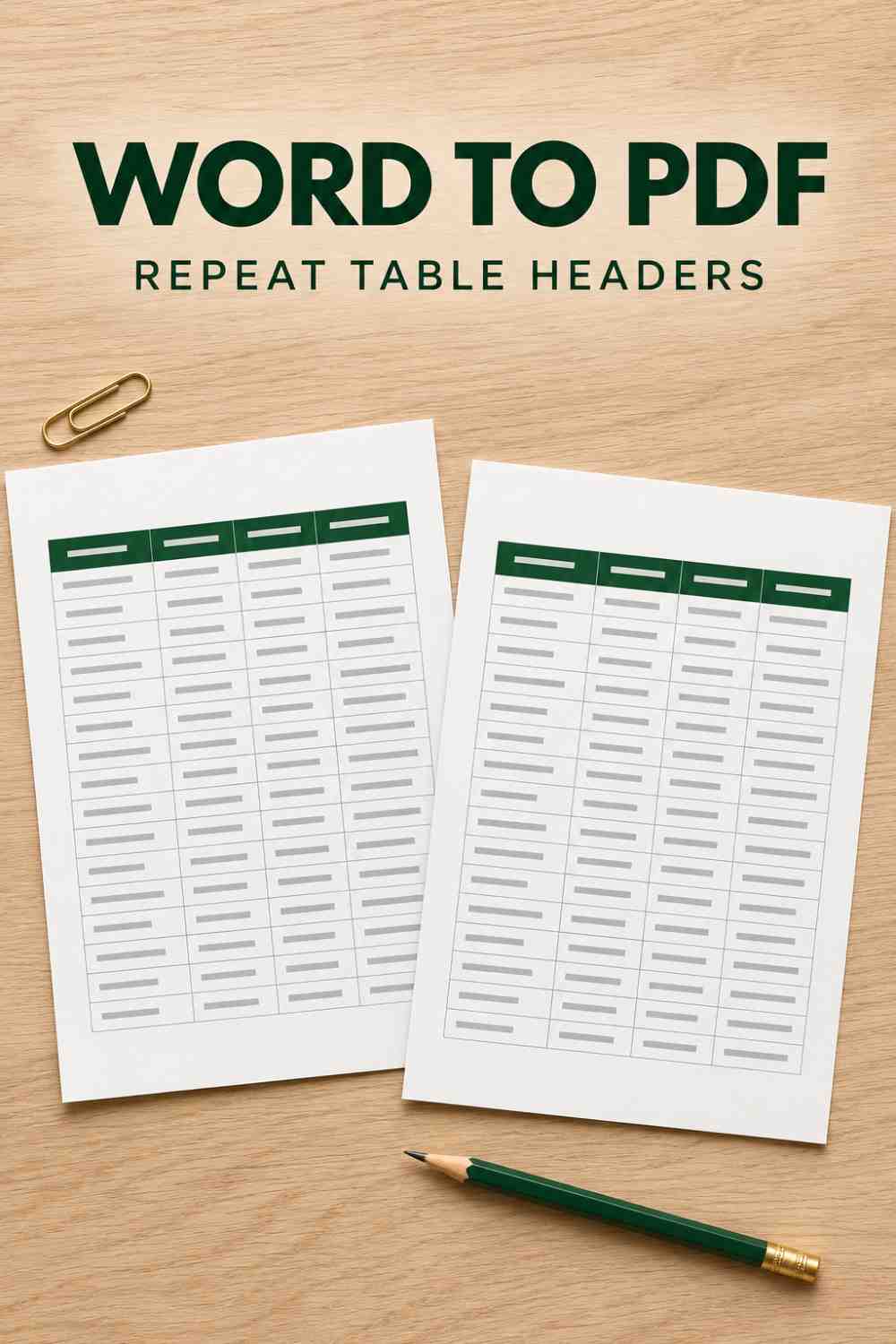
Keep column labels visible on each page of a long Word table. Set repeat header rows in Word, export to PDF and check the pages where the table continues.
How do you keep table headers visible in a multipage PDF?
Set the table's first row or rows to repeat in Word. In Print Layout, confirm that the labels already appear on continuation pages, then export the PDF from Word. Check the actual PDF before sharing, especially where the table moves onto a new page.
Mark the header rows in Word
Select the top row or consecutive rows beginning with the first row. In desktop Word, choose Table Layout > Repeat Header Rows. You can also open Table Properties, go to Row, and enable the option to repeat the row as a header at the top of each page.
For an inventory sheet, a single header row might contain SKU, Item, Quantity and Unit Price. If the first two rows hold a group label and the column names, select both when readers need that context on every page.
Let Word paginate a continuous table
Word repeats headers when a table flows across an automatic page break. A manual page break inserted inside the table can prevent the labels from repeating. If a continuation page has no headers in Print Layout, check for a manual break or a split into separate tables before exporting.
If the PDF's layout must match the DOCX, use Word's PDF export. A simplified DOCX converter can reflow the content, which changes where a long table crosses a page boundary.
Verify the PDF at the page break
Open the exported file and go directly to the second page of the table. Check that the column names sit above the first data row and align with the values below. Compare the last SKU on the preceding page and the first SKU on the next page against the Word document. Repeat that check at each continuation page in a delivery copy.
Related guides
- How to Keep One Landscape Page When Exporting Word to PDF
- DOCX to PDF: check headers, footers and page numbers before sharing
- A4 or Letter? Prepare a simple DOCX for PDF sharing
Prepared with AI assistance and reviewed against documented tool features; no firsthand testing is implied.