How to Save Only Selected Pages from Word as a PDF
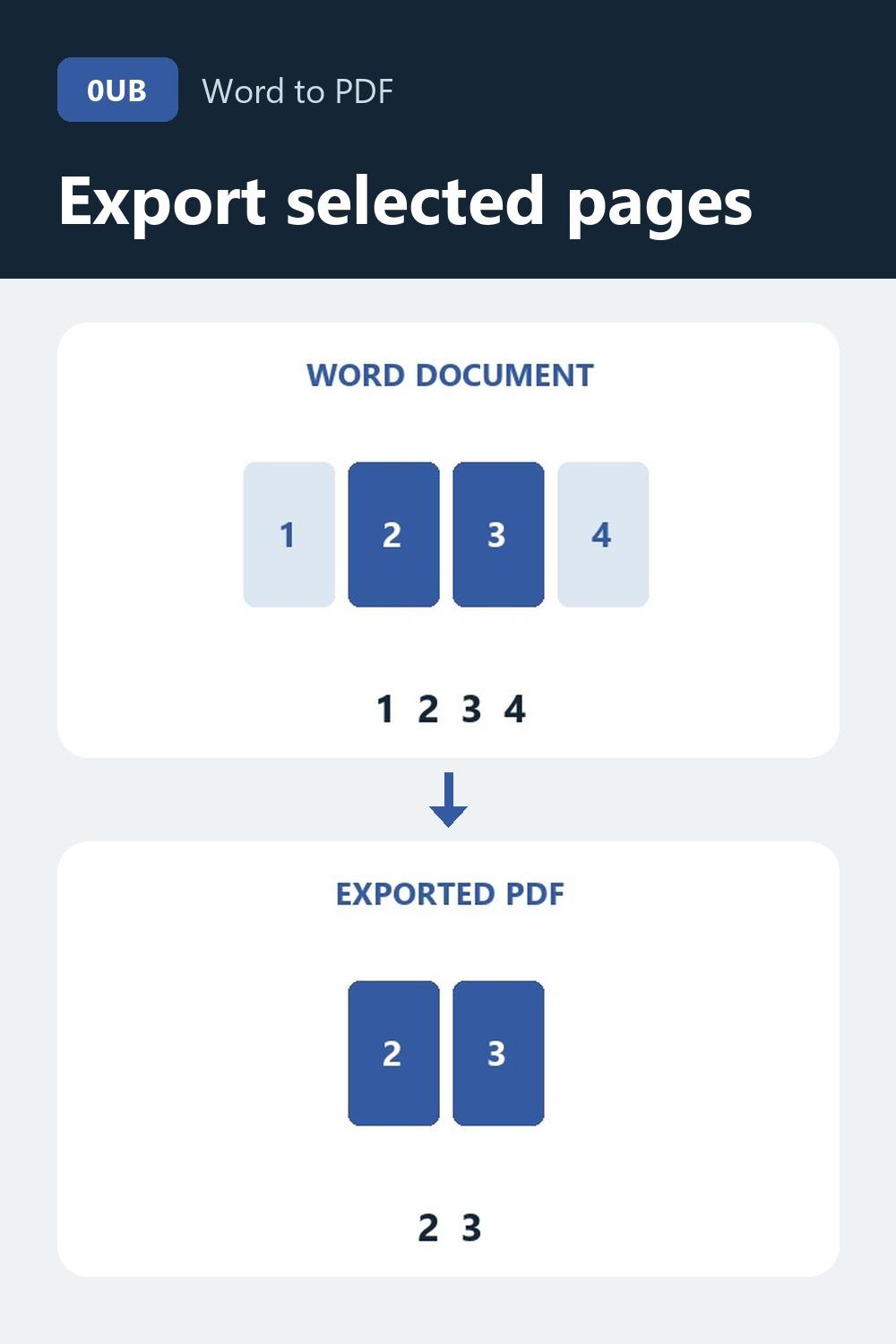
Export a page range from Word for Windows, then check the first and last pages of the new PDF before sharing it.
How to export a page range from Word
In desktop Word for Windows, open File → Save As or Save a Copy, browse to the destination, and choose PDF as the file type. Open Options in the save dialog, choose Pages under Page range, and enter the first and last pages you want. For a single page, enter the same number in both boxes. Give the PDF a name that identifies the excerpt, such as onboarding-guide-pages-2-3.pdf. Microsoft describes the available export controls at https://support.microsoft.com/en-gb/office/collab-files/save-or-convert-to-pdf-or-xps-in-office-desktop-apps.
Example: export pages 2 and 3 of a four-page document
In Print Layout, confirm what appears on the two pages you want. Enter 2 in From and 3 in To, save, and open the PDF. The PDF viewer should show two pages. The original footer may still say 2 and 3 because the PDF preserves the appearance of the source pages. Check the opening heading and the last line against the Word document to catch a range error.
What if the pages are not consecutive?
Word's PDF export lets you select a continuous range. If you need pages 2 and 5, you can export them as separate PDFs. If they must be delivered together, use the Organize Pages or equivalent extraction feature of a PDF editor that supports it. If the recipient needs hyperlinks or accessible document structure, verify those features in the final PDF before sharing.
What if the page range is off by one?
Review the actual pages in Word before export, especially if the document has a cover sheet or restarts its numbering after a section break. Confirm the content by opening the saved PDF and comparing its first and last pages against the intended excerpt. If the entire document is needed, the 0UB Word to PDF tool is another place to start.
Related guides
- Why Word to PDF Adds a Blank Page and How to Fix It
- How to Keep One Landscape Page When Exporting Word to PDF
Prepared with AI assistance and reviewed against documented tool features; no firsthand testing is implied.