Check numbered steps and bullet lists in a converted PDF
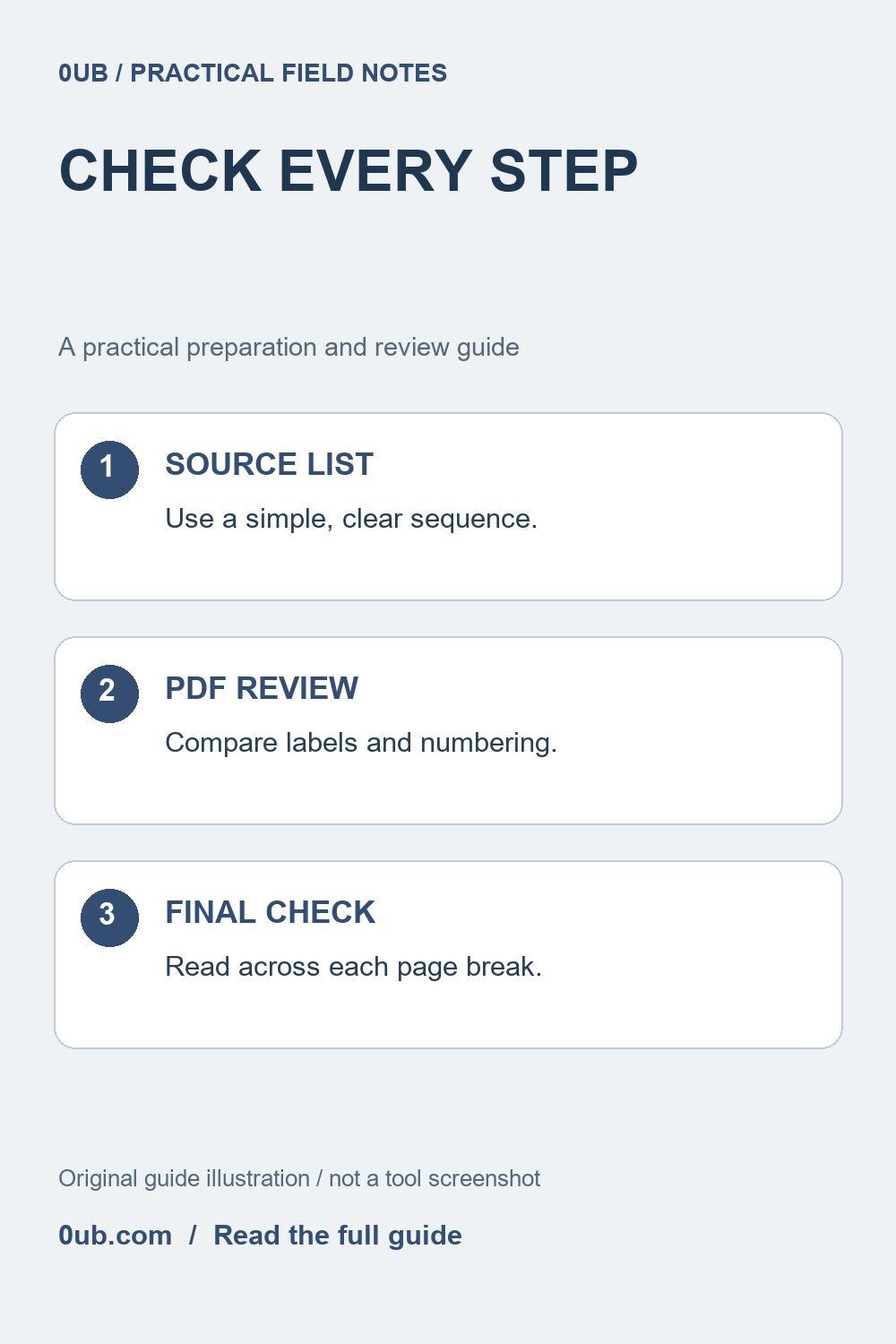
A missing number or awkward page break can change an instruction. Prepare simple lists in the DOCX, then compare every step with the exported PDF.
Choose numbers only when order matters
A short instruction sheet often combines numbered steps with bullets for optional information. Before converting it, decide which items must happen in sequence. Use numbers for that sequence and ordinary bullets for a collection of notes. Clear source structure makes later review easier, even when the conversion does not preserve every layout choice.
For example, a file-sharing checklist could contain three ordered actions: prepare the working copy, inspect the export and share the reviewed file. Supported formats can appear as a separate unordered list. This is an editing example, not a claim that a particular list style will always survive a conversion unchanged.
Simplify the editable source
Make a copy of the DOCX before changing it. In your document editor, prefer ordinary list formatting over numbers aligned with repeated spaces or a row of text boxes. Keep nested levels shallow and remove empty items. Write each instruction so that it can be understood without relying on its exact position on the page.
Avoid using a symbol alone to communicate an important distinction. If a step is optional, say so in words. If a later paragraph refers back to an earlier step, check that the reference still points to the correct action after edits. Renumbering a list can leave an old reference behind even before you create the PDF.
Convert a representative document
Save the working copy as DOCX and choose the intended paper size in Word to PDF. The 0UB tool is designed for simple DOCX documents and renders the result in the browser; it does not guarantee an exact reproduction of Word's spacing, fonts or list markers. Older .doc files are not supported.
Open the exported PDF alongside the source. Compare the first item, a middle item and the last item, then read the complete sequence. Look for missing markers, unexpected restarts, skipped numbers and lines that appear to belong to the wrong item. Check indented substeps especially carefully because a change in indentation can change how the reader interprets them.
Review page breaks and the delivery format
Inspect every place where a list crosses a page boundary. Make sure an instruction has not been separated from essential explanatory text or a related picture. If the result is confusing, simplify the source or divide the material into short, clearly titled sections and export again. Do not repair a confusing sequence merely by shrinking the text.
The rendered PDF should not be assumed to preserve selectable text, document tags or a useful reading order for assistive software. When those features are required, use an appropriate export workflow and verify them separately. Keep the editable source and the final reviewed PDF, with distinct filenames, so corrections can be made without reconstructing the list from an image.
Related guides
- Prepare document images before converting a simple DOCX to PDF
- Simplify a Word table before making a shareable PDF
- Check the last page before sharing a converted DOCX PDF
Prepared with AI assistance and reviewed against documented tool features; no firsthand testing is implied.