Check symbols and special characters after a simple DOCX to PDF conversion
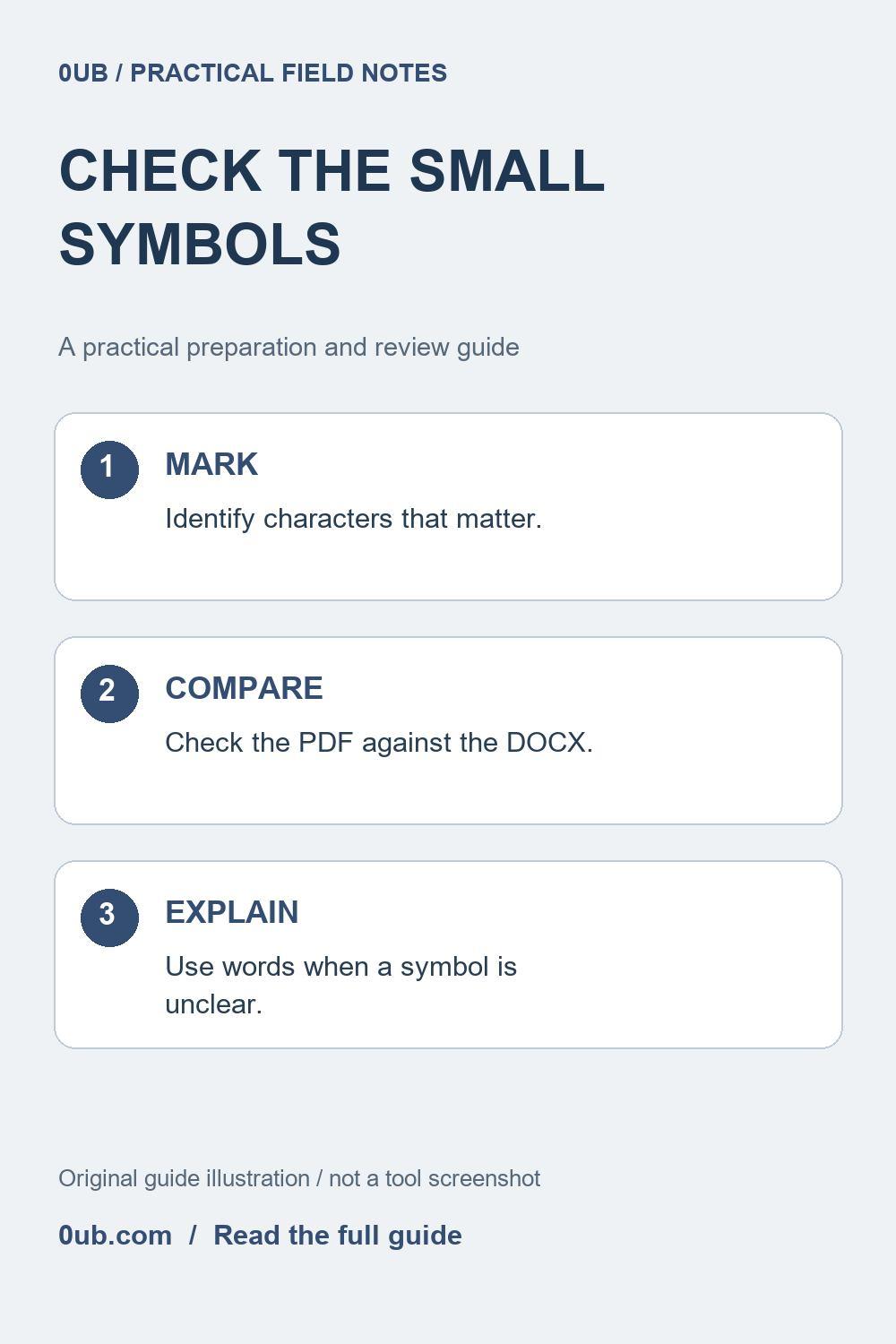
A changed symbol can alter an instruction or a measurement. Compare names, punctuation, units and unusual characters in the exported PDF before sharing it.
Identify characters that carry meaning
A short document can contain a person's accented name, a degree symbol, a currency sign and a checkbox. These details are easy to overlook when the paragraphs appear broadly correct. Before exporting, mark the characters that would change the meaning if they disappeared, became a square or were replaced by something similar.
Pay particular attention to units, minus signs, decimal punctuation and labels used in instructions. A decorative arrow is less important than a missing negative sign in a value. Keep a working copy of the DOCX and a small checklist of the places that need comparison. Do not treat an attractive first page as proof that every character survived.
Prefer clear text over decorative shortcuts
In the source editor, use ordinary text for essential instructions where possible. A symbol inserted from a decorative font may depend on that font being available. If an icon means optional, complete or caution, include a short word explaining the meaning rather than relying entirely on the shape or its color.
Avoid changing a technical symbol casually just to improve its appearance. If the correct notation is important, retain the proper source and choose an export workflow that supports it. The 0UB Word to PDF tool is intended for simple DOCX documents. It does not promise to preserve original fonts, specialist notation, complex layouts or interactive fields exactly.
Compare an exported sample with the source
Convert the working DOCX using the intended A4 or Letter paper size. Open the downloaded PDF alongside the original and visit each location on your checklist. Inspect whether accented letters are readable, brackets remain paired and currency or unit labels still refer to the intended value. Zoom in when a character looks ambiguous, then check normal reading size too.
Review repeated symbols in several places rather than checking just one occurrence. A heading, table cell and ordinary paragraph can use different formatting in the source. Look for blank spaces, replacement boxes and a character that has moved to a separate line. Compare the words and values around it so a layout change does not conceal a missing detail.
Correct the source or choose a suitable export route
If a nonessential icon is unclear, replace it with an explicit word in the DOCX and make a fresh export. If exact mathematical notation, a required font or formal formatting is essential, use the original editor's appropriate PDF export and review that result. Do not distribute a known incorrect symbol simply because the file opens successfully.
Keep the editable source and the final reviewed PDF with distinct names. The browser-rendered output should not be assumed to contain searchable text, accessible document structure, working hyperlinks or fillable checkboxes. Visual character review and those functional checks are separate tasks. Verify the features your recipient actually needs before sharing the document.
Related guides
- Check numbered steps and bullet lists in a converted PDF
- Check the last page before sharing a converted DOCX PDF
- Need searchable PDF text? Check the conversion method first
Prepared with AI assistance and reviewed against documented tool features; no firsthand testing is implied.