How to Check HEIC and JPG Photo Print Size from Pixel Dimensions
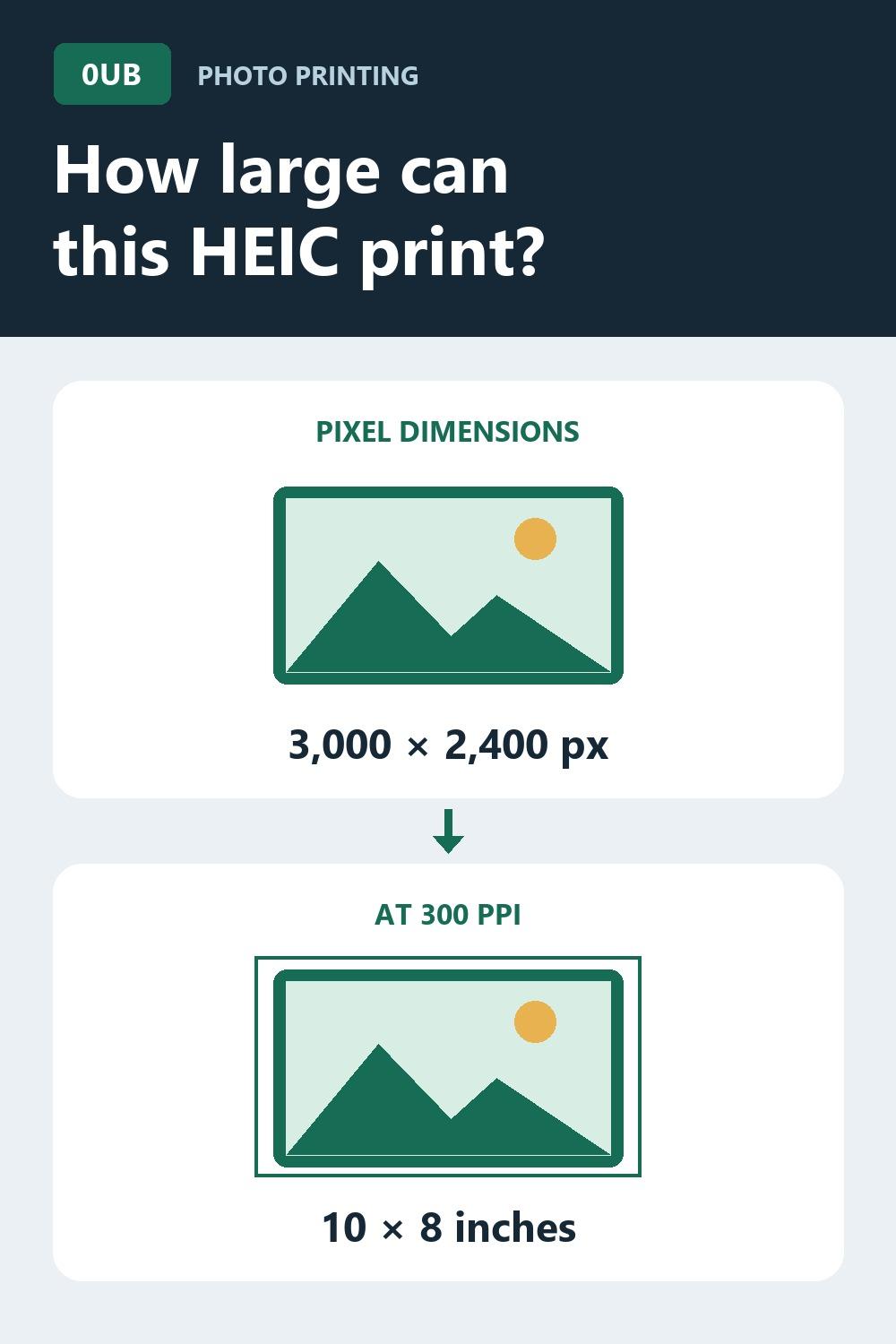
Calculate how large an iPhone photo can print at 300 PPI, then check its crop and pixel dimensions after converting HEIC to JPG.
How large can a HEIC photo print?
Divide each pixel dimension by the print resolution in pixels per inch. At 300 PPI, a 3,000 × 2,400 pixel photo prints at 10 × 8 inches without adding pixels. You can also work backward. An 8 × 10 inch print at 300 PPI calls for 2,400 × 3,000 pixels, depending on orientation. Treat 300 PPI as a planning example and check the print provider’s requirements for your size and finish.
Check the crop before calculating
A 4,032 × 3,024 photo has a 4:3 aspect ratio. An 8 × 10 inch print has a 4:5 ratio, so a borderless print may crop part of the image. In landscape orientation, keeping the 3,024-pixel height and cropping the width to 3,780 pixels gives the 5:4 ratio the print needs. That crop yields about 378 PPI at 10 × 8 inches. Look at the preview to see which edges are removed. Ask for borders if retaining the entire frame matters more than filling the paper.
Does converting HEIC to JPG change the print size?
At the same pixel dimensions and target PPI, both files support the same print dimensions. If the print service asks for JPG, convert a copy with the 0UB HEIC to JPG tool and confirm its actual width and height afterward. JPEG compression can still affect details at the same dimensions, so inspect one sample at full size. Keep the HEIC original for future exports.
Can I just change the PPI field to 300?
Changing the PPI metadata alone changes the suggested print size without adding image pixels. If the cropped photo falls below your print provider’s recommendation, choose a smaller print or check a proof before ordering a large one.
Related guides
- How to Convert HEIC to JPG and Keep the Same Pixel Dimensions
- HEIC to JPG: a simple photo sharing checklist
Prepared with AI assistance and reviewed against documented tool features; no firsthand testing is implied.