How to Handle Commas and Quotes in a Product CSV
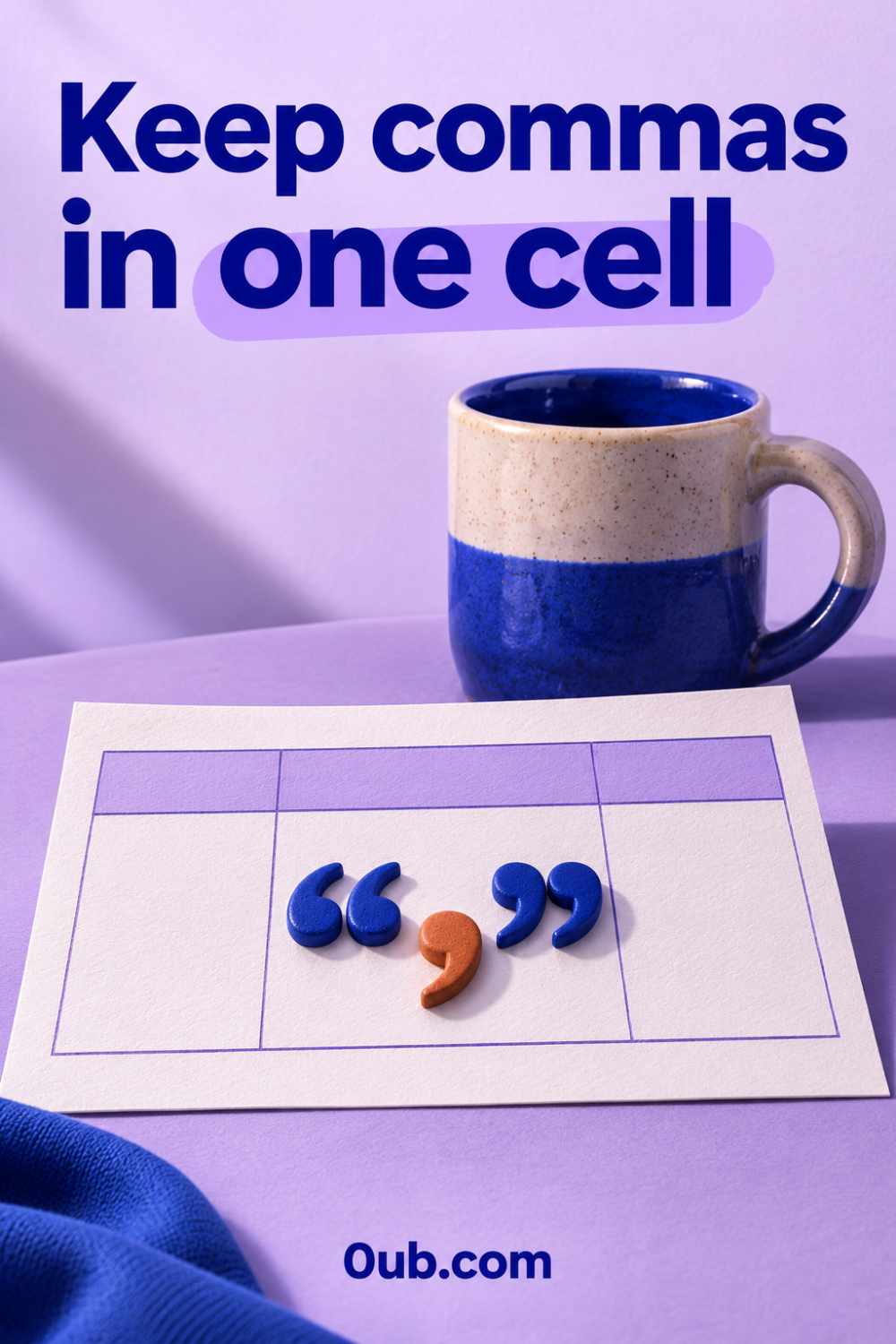
Keep product titles in one CSV field even when they contain commas or quotation marks. Use a sample row to check your batch graphics export.
How do you keep a comma inside a product title in CSV?
Put the whole title field in double quotes. If the title itself contains a double quote, write that character twice inside the quoted field. If you use a spreadsheet, type the title normally into one cell and let the spreadsheet create the CSV quoting when it exports.
For example, the intended title is Mug, “Coastal” Edition, using straight double quotes around Coastal in the source cell. A comma-separated file with a title and image column should have this header: title,image. The corresponding data row is: "Mug, ""Coastal"" Edition",mug-coastal.jpg
Understand what the quotes do
The outer pair tells the reader that the comma after Mug belongs inside the title. The doubled quotes around Coastal represent the literal quotation marks that should display in the final title. Without the outer pair, the comma after Mug can be read as a column separator, pushing the filename into the wrong place.
Do not type the outer pair and doubled quotes into the title cell when editing a spreadsheet. Use the ordinary title in the cell and export to comma-separated UTF-8 CSV. If you edit the raw CSV in a plain-text editor, apply the quoting rules to the file itself.
Run a one-row check before the whole catalog
Create a small test CSV with the title and image column names used by the 0UB product graphics studio. Select the matching local photo. The image cell should contain the actual filename, including its extension, such as mug-coastal.jpg.
Inspect the finished product graphic for the intended comma and quotes, the correct photograph and readable headline wrapping. CSV batch graphics require the relevant Pro access. If the title imports correctly but wraps awkwardly, shorten the wording in the spreadsheet and re-export the CSV.
What should you check when the row still fails?
Open the CSV in a plain-text editor and confirm that the header uses commas between columns. Some spreadsheet exports use another separator, depending on regional settings. Check that the difficult row has the expected number of fields when parsed as CSV, and compare its filename with the image you selected.
Start with the studio's sample CSV if the header or format is unclear. Once the test row works, review other titles containing commas or quotation marks and inspect a few downloaded graphics before publishing the set.
Related guides
- Fix CSV image filename mismatches before batch export
- Make product graphics in three sizes from a CSV
- Match each product variant photo to its promotional copy
Prepared with AI assistance and reviewed against documented tool features; no firsthand testing is implied.