Match each product variant photo to its promotional copy
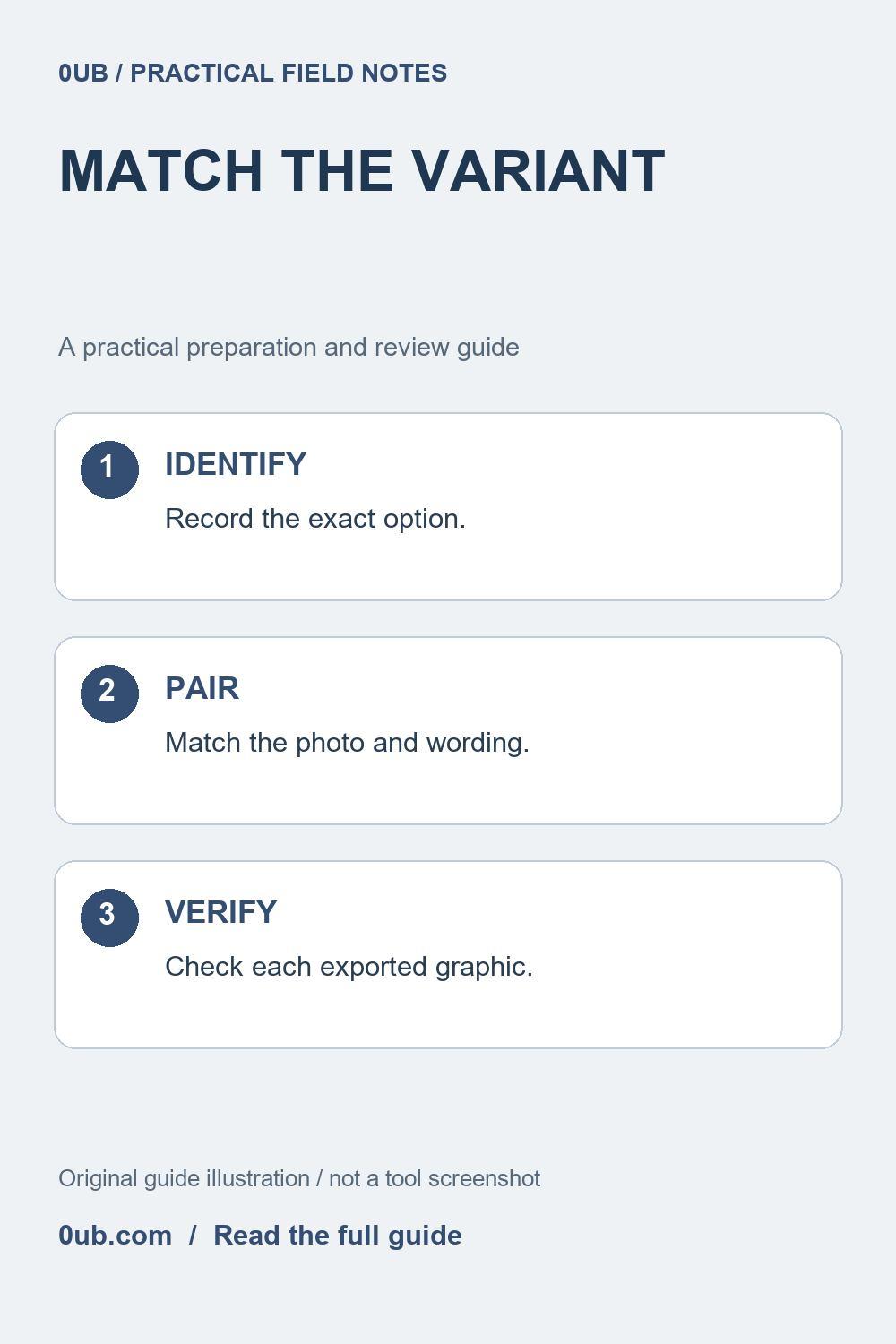
Similar product photos can make a batch look consistent while describing the wrong option. Use a variant checklist to align each image, headline and offer before export.
Build a small source-of-truth list
A product may come in several colors, pack sizes or configurations. Its photos can look almost identical, making it easy to attach the right filename to the wrong offer. Before designing a promotion, record a short internal identifier for each option, its destination URL and the photograph that actually represents it.
Use a simple working list with columns such as variant, image filename and headline. Add price only when you have checked the corresponding option. Do not assume a price shown for the default selection applies to every variant. The Product graphics studio does not validate external product details or detect mismatches automatically.
Give source images unambiguous names
Keep descriptive filenames that distinguish meaningful options, such as navy-single-front.jpg and navy-two-pack.jpg. These are illustrative names, not a required naming scheme. Check the actual image contents rather than relying on names alone. A renamed photograph can still show the wrong quantity or color.
Use images you are permitted to publish and avoid implying that an accessory or extra item is included when the offer does not include it. When a photograph is only illustrative, decide whether the graphic or surrounding post needs an explanation. Do not invent a product view or claim a personal inspection that did not take place.
Pair the CSV row with the intended image
For a CSV batch in Product graphics studio, the title and image columns are required, and the image entry must match a selected local file. Check the optional price and brand values against the same variant. A successful filename match confirms that a file was located; it does not confirm the commercial information is correct.
Start with one representative row before generating more graphics. Use a headline that identifies the option without becoming a long specification list. Keep any essential condition readable at the intended display size. If the offer is complicated or changes often, consider directing readers to view current options instead of embedding a price that is difficult to maintain.
Inspect exports and their destinations together
Open each finished graphic and compare the photograph, title and any displayed price with the working list. Check all exported proportions because cropping or text wrapping can hide the feature that distinguishes one variant from another. If the distinguishing detail is missing, adjust the available framing or use a better permitted source photograph.
Finally, open the link attached to the post and check what a reader will see. Some product pages open with a default option rather than the one pictured; explain the selection clearly when needed. Keep a dated record of the published graphic and its destination so you can revise it when the offer changes. Static graphics do not update themselves after export.
Related guides
- Fix CSV image filename mismatches before batch export
- Check the offer before you export a product graphic
- Choose product graphic colors that keep the message readable
Prepared with AI assistance and reviewed against documented tool features; no firsthand testing is implied.