How to Keep Word Headings as Clickable PDF Bookmarks
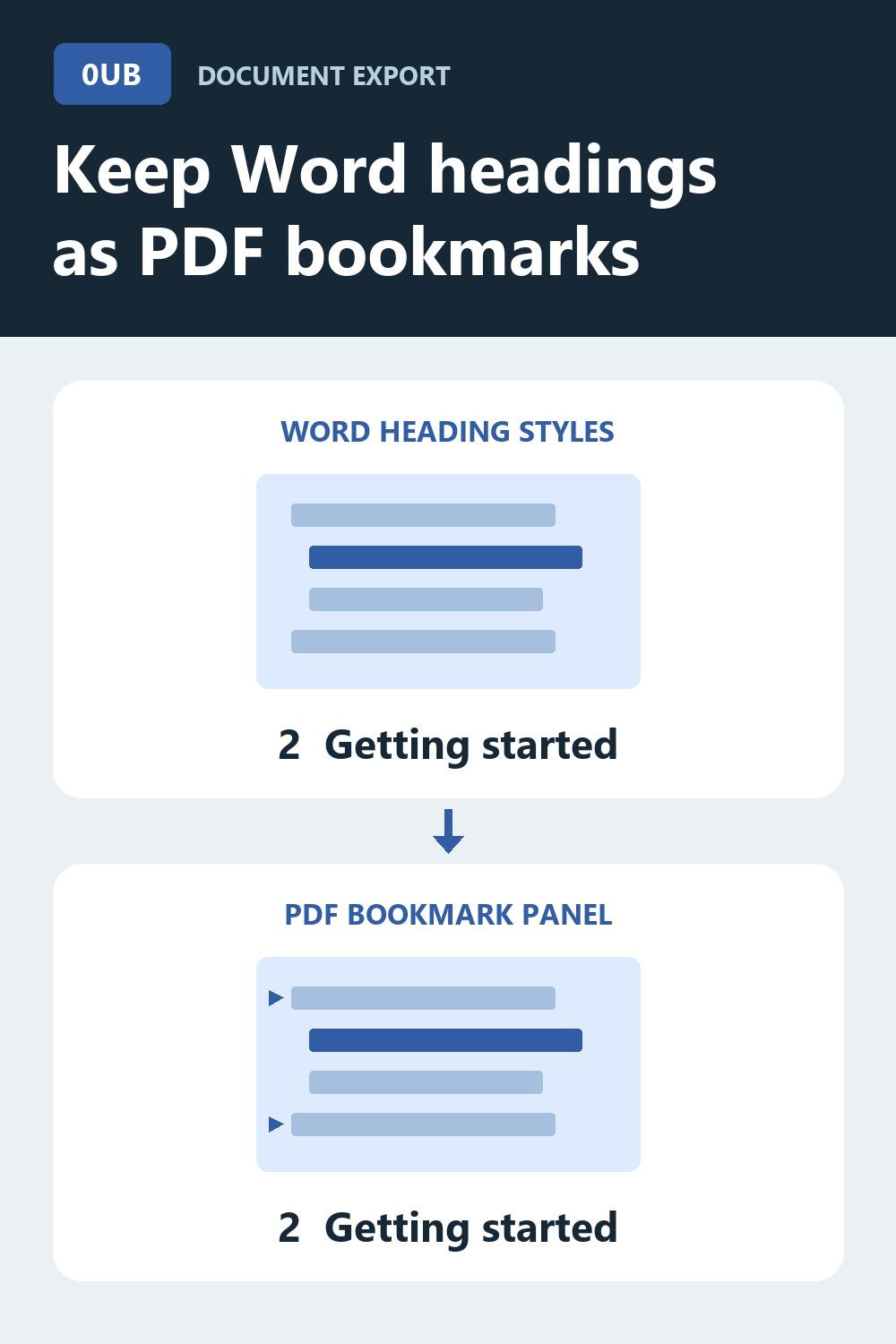
Export Word heading styles as PDF bookmarks and test the navigation panel before sharing a long document.
How do you create PDF bookmarks from Word headings?
In desktop Word for Windows, apply Heading 1 to chapter titles and Heading 2 to subsections using Home → Styles. Choose File → Save As or Save a Copy, browse to a location, and choose PDF. Open Options, enable Create bookmarks using, and choose Headings. Save the file and open it in a PDF reader with a Bookmarks or Outline panel. Microsoft documents these export options at https://support.microsoft.com/en-gb/office/collab-files/save-or-convert-to-pdf-or-xps-in-office-desktop-apps.
Example: make a guide easier to navigate
A ten-page setup guide might use Heading 1 for Installation and Troubleshooting. Under Troubleshooting, use Heading 2 for Connection Errors and Reset Steps. In the exported file, expand the Troubleshooting bookmark and click both entries. Each should jump to the correct section. Also click a chapter near the end to catch an issue that a first-page check would miss.
Why are some bookmarks missing?
Check the source in Word’s Navigation Pane. If a section is absent there, inspect its style. A title styled manually with bold text and a larger font can look like a heading without carrying the same document structure. Apply a heading style, regenerate the PDF, and check again. Verify that you used the export option to create bookmarks from headings. If the PDF reader has no outline button, try a reader that supports document bookmarks.
Are PDF bookmarks and a clickable table of contents the same?
PDF bookmarks appear in a reader’s navigation panel. A table of contents appears on the page and can contain its own clickable links. If your guide relies on both, test both separately. When using an online converter, inspect the resulting PDF to see which navigation features it preserved.
Related guides
- DOCX to PDF link check: verify clickable text before sharing
- How to Save Only Selected Pages from Word as a PDF
Prepared with AI assistance and reviewed against documented tool features; no firsthand testing is implied.