Review a set of product graphics with a simple contact sheet
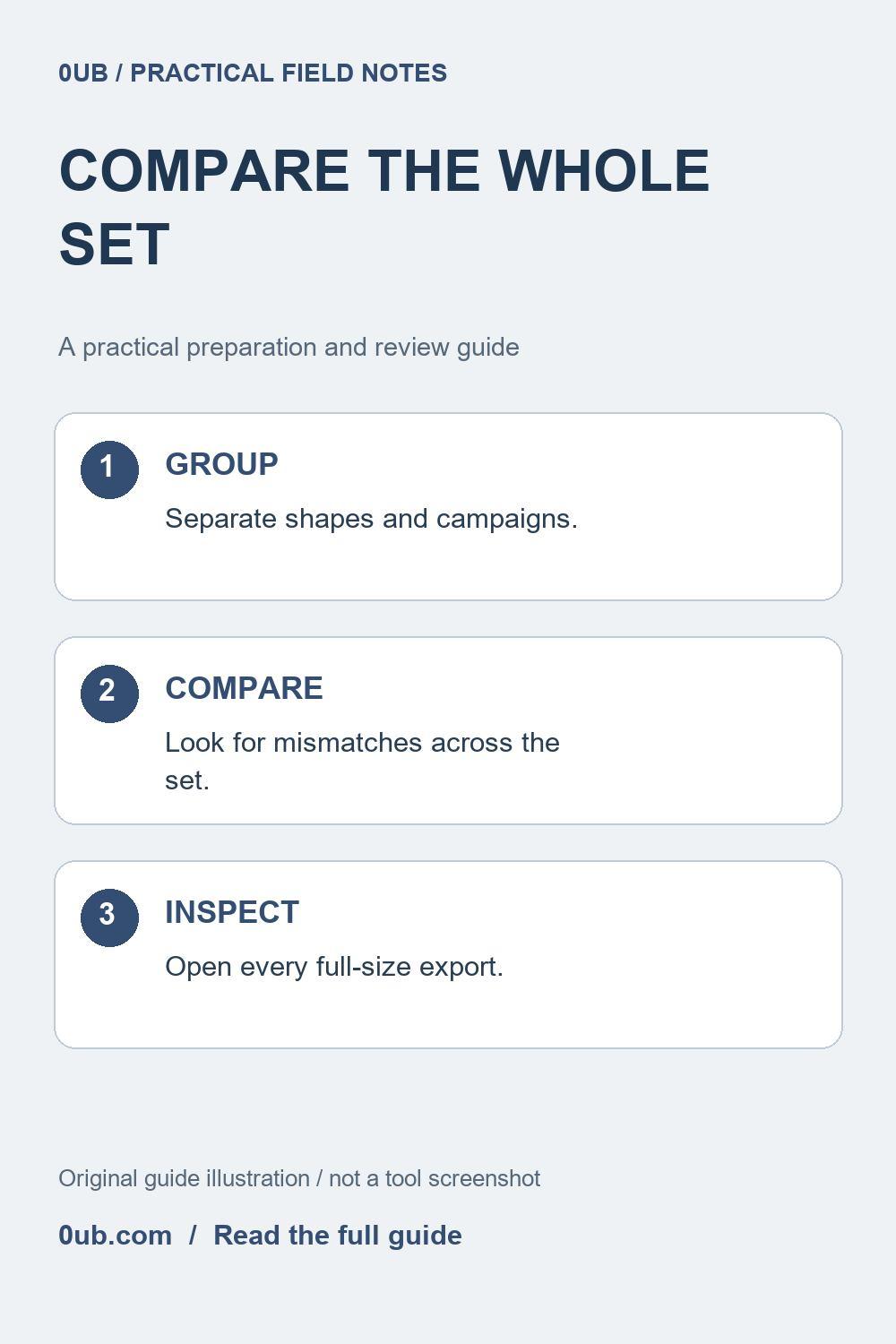
Small previews help reveal inconsistent titles, missing variants and uneven framing. Use a contact sheet for comparison, then inspect each full-size export before publishing.
Use the overview to compare, not to approve
When you create several product graphics, checking them one at a time can make inconsistencies difficult to spot. A contact sheet is a page or screen showing small previews together. It can reveal an unusually long headline, an image from the wrong variant or a price style that differs from the rest of a collection.
Make the overview in an image viewer, presentation editor or another application that supports arranging thumbnails. The current 0UB Product graphics studio does not generate a contact sheet automatically. This is a review step performed after export, and it does not replace opening the actual files at a useful viewing size.
Compare one output shape at a time
Put portrait graphics together, square graphics together and landscape graphics together. Similar proportions make it easier to compare the placement of the product and the relative size of the headline. If you mix all three shapes on one page, differences caused by the layout can distract from a genuine content mistake.
Use short identifiers beside the previews so each one can be traced to its source image and intended destination. Keep the original export filenames with your working list. If you resize copies to build the overview, store them separately; a small contact-sheet preview should not accidentally replace the full-size graphic used for publication.
Look for content mismatches before polishing style
First compare each photo with its title, product option and destination record. Check that a two-item offer does not use a picture of a single item without explanation. Review any displayed price and relevant condition against the corresponding source. Neither a contact sheet nor the graphics studio verifies an external seller's commercial information.
Then compare the visual rhythm. Look for a product that is much smaller than its neighbors, a crop that hides a useful detail or a supporting line that becomes hard to read. Similar treatment can help a collection feel coherent, but do not force every photograph into the same crop if doing so removes information the reader needs.
Check the outliers at full size
Open each graphic that looks different and inspect the actual exported file. Read the smallest essential text, check the edges of the photograph and look for a shortened headline. A thumbnail can hide clipped letters and compression problems. Review the remaining files too: an overview can guide your attention, but it cannot establish that every detail is correct.
If you change a title, image or framing choice in Product graphics studio, export a replacement and refresh the matching preview in your overview. Keep a clear record of the approved version rather than leaving several files with nearly identical names. For a CSV batch, correct the source row as well so the next export does not reintroduce the same issue.
Publish the reviewed assets deliberately
Use the full-size approved graphics in the destination's publishing preview and check the associated product links. The studio produces static images and does not post them or keep offers synchronized. Retain the source photographs, working CSV where used and a short dated review list so later revisions can be made from the right materials.
A contact sheet is most useful as a comparison tool: it helps you see the collection, while the individual-file review checks the details. Keeping both steps makes a small catalog easier to maintain without claiming that a neat overview proves a product's quality or an offer's accuracy.
Related guides
- Match each product variant photo to its promotional copy
- Choose product graphic colors that keep the message readable
- Organize product image exports before making social graphics
Prepared with AI assistance and reviewed against documented tool features; no firsthand testing is implied.